Contents
- Pick portraits with clear features
- Create the identity and make a control set
- Separate character features from scene features
- Where to check consistency in motion
- Put together a character pack for the project
- Compare two scenes with one character
- Check the identity after a costume change
- A consistent character in Solistra
- Sources and licenses
Soul ID helps you use one visual identity across a series of scenes. For a consistent character, it's not just the face that matters, but also the angles, age, hairstyle, clothing details and light. Prepare a set that lets you check specific features. Start with a neutral portrait and only then move on to complex actions and unusual lenses.
Pick portraits with clear features
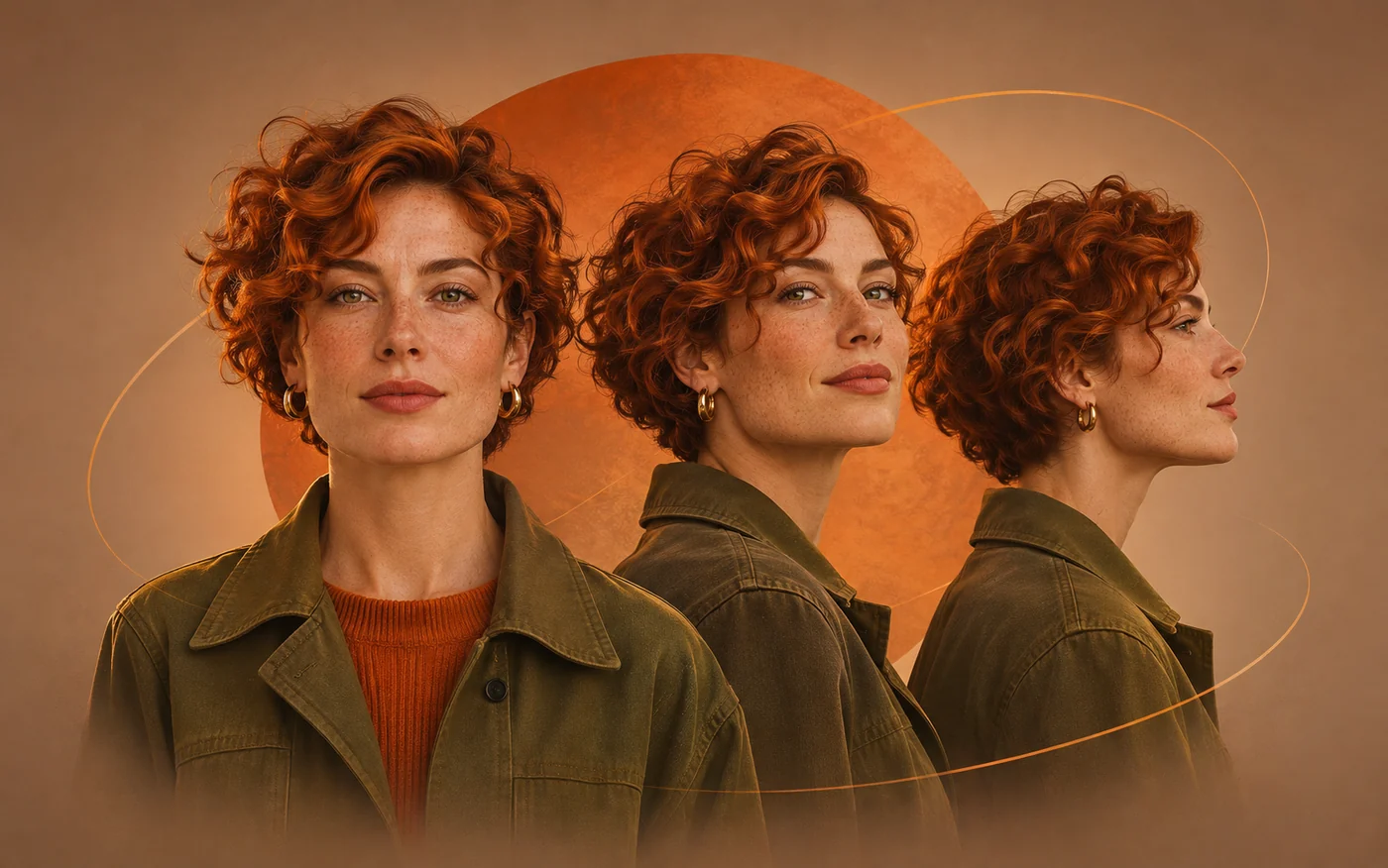
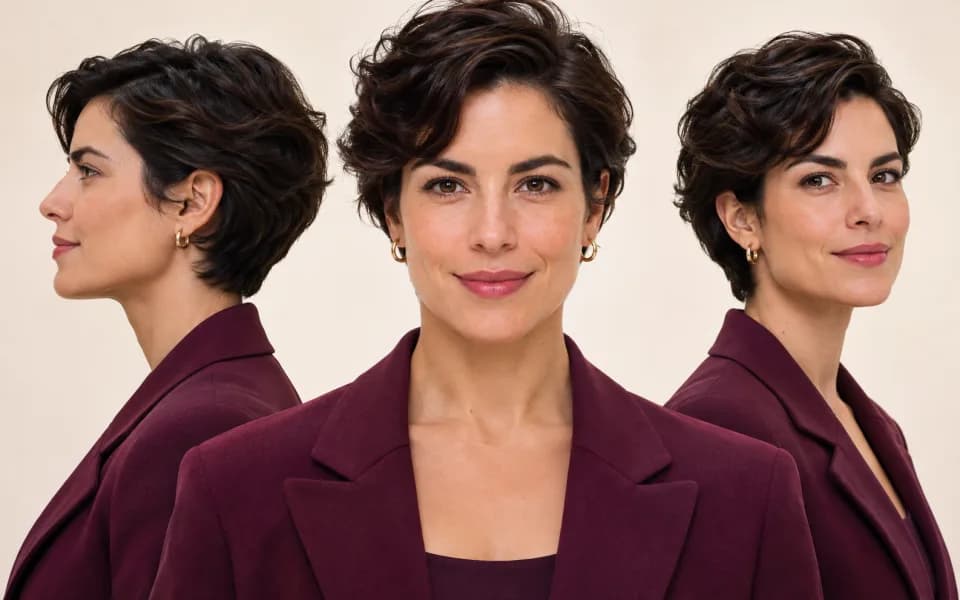
Take sharp shots of one person or of a character you've created. Keep the hair color, age and visible permanent details consistent. Front, three-quarter and profile shots help you see different sides of the face. Avoid heavy filters, strong retouching, glasses with glare and photos where a hand covers the face. Choose light in which the eyes and the jawline read clearly.
Use portraits only within the permission you've been given and the service's terms. Before uploading a real person, check that animation, future publication and any advertising context have been agreed. For a test, you can use an invented character. Keep your working photos separately and strip metadata the scene doesn't need from the copies.
Create the identity and make a control set
Open Soul ID through the official interface. Check the number of files and the accepted format on the upload screen. Supply a consistent set. First try a simple portrait on a plain background, then check a medium shot and a side angle separately. To compare, put all the variants side by side and note in which one the shape of the face, the parting or the chin changes.
A natural three-quarter portrait of the same adult character with short dark hair and a plum jacket. Neutral expression, soft even window light, clear eyes and a plain warm background.
Check the skin tone at the same brightness, and the proportions at a similar framing. If the result is recognizable from only one angle, update the set of inputs and check again. A costume change may help the story, but for checking identity, keep one costume in the control shots.
Separate character features from scene features
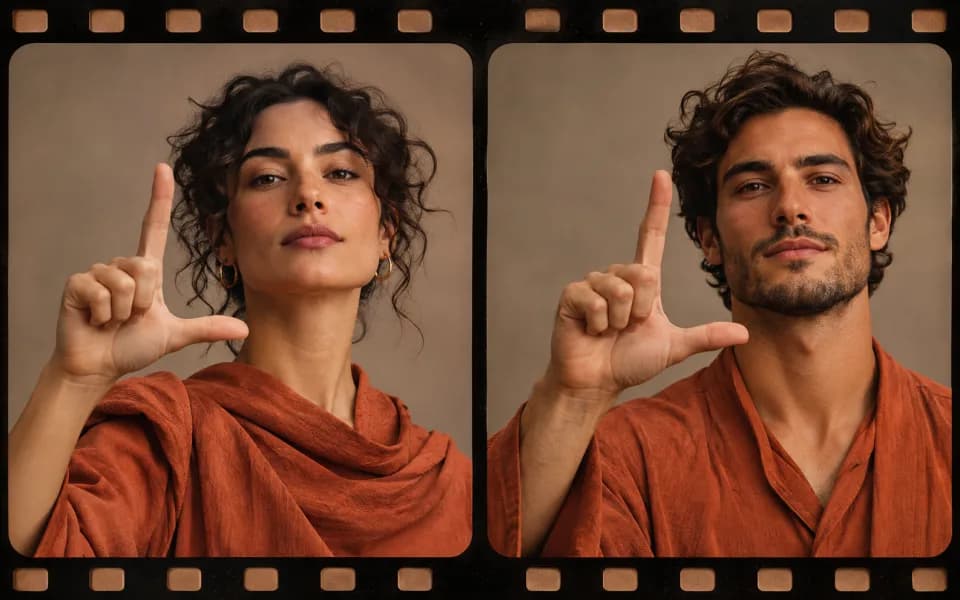
Make a short card. Permanent features: face shape, hair color and a distinctive hairstyle. Variable ones: clothing, background, light and emotion. For a shooting day, you can pick one costume for a series of shots. For another chapter, change only the clothing and check that the face is still recognizable. Avoid competing portrait inputs if you want to keep a single character.
Then prepare a reference frame for the video. If the model accepts a photo, use an angle you've already approved. Start with small movement: a glance, a blink or a short gesture. For a big turn, prepare a separate photo facing the right way. When you move to a new tool, check which kinds of references it actually supports.
Where to check consistency in motion
Compare the first, middle and last frames. At the start, make sure the face matches the reference. In the middle, check the eyes, the shape of the mouth and the hairline. At the end, compare the expression and the outline. If identity is lost only during a sharp movement, reduce it and make the transition with a cut. If the look changes in the very first frame, go back to the quality and compatibility of your references.
| Failure | What to refine |
|---|---|
| The face is similar, but the age changes | Match the sources by age and remove extreme lighting conditions |
| Hair covers the eyes | Pick a frame with a clean silhouette and less wind |
| Clothing changes between shots | Lock the color and a recognizable detail in the input frames |
| The whole scene changes on a turn | Split the movement into two stable angles |
Put together a character pack for the project
Keep several accepted stills, the card of permanent features and a list of tested prompts. Note which angle worked for animation and which is only good as a still image. If you work with a team, agree on access and usage rights. Before publishing, review neighboring shots together: the viewer should recognize the character from the frames, not from a caption explaining it.
Compare two scenes with one character
First make a portrait in soft daylight, then a medium shot of the same character in a dark room. Keep the hairstyle and the chosen clothing. Put the images side by side and find three stable facial details. If they get lost in the dark shot because of the light, adjust the lighting first. If the face shape changes under similar light, go back to the references.
For a short animation, supply the accepted medium shot and ask only for a small shift of gaze. After watching, compare the start and the end with the control portrait. If the identity holds through a neutral movement, add a more noticeable turn in a separate test. Before publishing, check that the person's appearance and role match the permission you were given.
Check the identity after a costume change
Make two control versions of the same angle. In the first, keep the agreed costume. In the second, change only the clothing. If the hairline or facial features change along with the costume, go back to the neutral source and clarify the role of each reference. For a series, use the accepted portrait as your constant reference and check differences against three noticeable features. Keep both approved looks separately in case the script needs you to return to the first one.
A consistent character in Solistra
Solistra has its own counterpart for almost every Higgsfield model. The counterpart of Soul ID is Characters: one hero for photos and video. Ready looks based on your photo come from Effects. Other differences between the services are in the Higgsfield comparison.
Try it in Solistra
Sources and licenses
- Mastering AI Character Consistency in Video and Images — Higgsfield
- How to Keep Characters and Locations Consistent Across AI Shots — Higgsfield
- Terms of Use Agreement — Higgsfield
- How to Make AI Videos as a Beginner — Higgsfield
- Text
- Solistra text. Our own wording and prompt examples, quotes under 15 words
- Images
Other images — Solistra image
- Checked
- November 12, 2026