Contents
Kling Motion Control on Higgsfield transfers motion from a video onto an image of a character. The official help page describes two inputs: a character reference and a motion reference. How you prepare these files decides how easy it will be to accept the result. Start with a simple gesture that has a visible start and stop.
Pick the character image
If the video needs hand gestures, the source has to show the hands and the position of the torso. For full-body movement, prepare a full shot with visible footing. A close-up portrait works for facial expressions, but it's harder to rebuild the figure and a gesture beyond the edges of the photo from it. Check that the face is sharp, not covered by hair or an object, and turned roughly the same way as in the source video.
A similar framing and the same side of the body matter. If the person in the reference is in profile and the photo looks straight into the camera, the model has to transfer the motion and rebuild the hidden side at the same time. For the first run, match the angles. If the costume matters, use a photo where its main edges stand apart from the background.
Record a short motion reference
Put the camera on a steady support. Show the starting position, one gesture and a pause. For example, a person raises their right palm to shoulder height, holds it and lowers it. Avoid sudden zooms, angle changes, people in the background and a hand that suddenly leaves the frame. Leave enough room at the edges for the full range of the gesture to fit. If the video isn't yours or shows a recognizable person, use it only if you have the necessary rights.
When you prepare the file, cut a segment with a clean start. Check the upload settings for the specific mode. Different versions may limit length and format. For first tests, a short segment with a clear gesture is more useful than a long sequence with several actions. If you need several gestures, test them separately first.
Upload the files to the right fields
In Video, open Kling Motion Control if this mode is available to you. Add the character image and the motion video to their fields. If the editor shows an orientation or source priority setting, read the hint in the current interface. The setting affects which input defines the starting position. Compare it in a separate test with the same files.
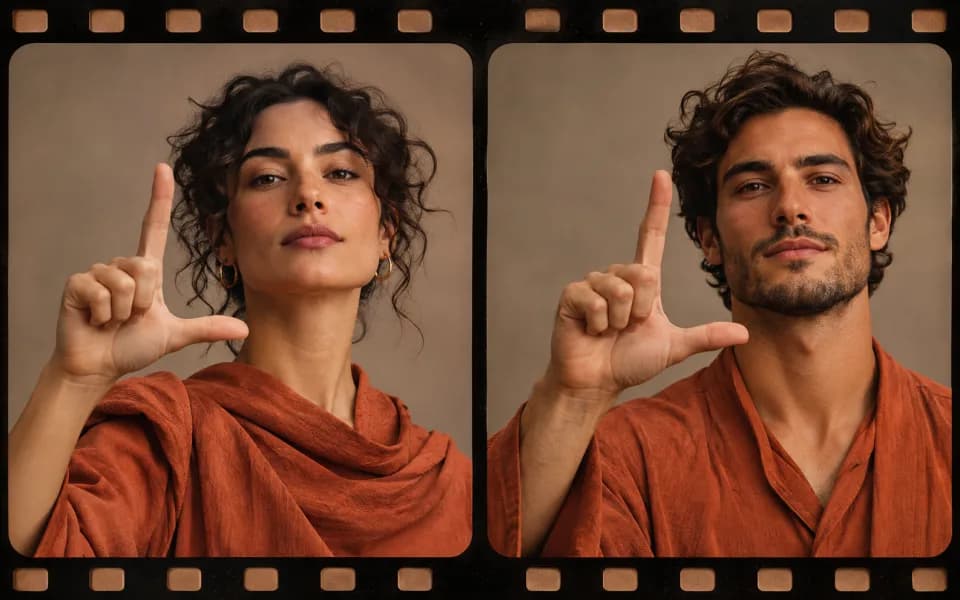
Keep the subject's face, short dark hair and terracotta jacket from the character image. Follow the timing of the motion reference: raise one hand to shoulder height, pause, and lower it. Maintain a steady camera.
Use the text field if it's available. The text clarifies what to keep and which part of the reference to use. The gesture itself is already in the video, so you don't need a long prompt repeating every small phase.
Check the transfer frame by frame
Put the reference video and the result side by side. Compare the frame before the start, the rise, the extreme point and the stop. Follow the leading hand, the shoulder movement and the head turn. If the gesture reads but the fingers merge in one frame, judge whether the flaw falls inside the segment you need for the edit. If the face changes as the head turns, pick closer angles and less head movement.
| Symptom | What to check |
|---|---|
| Background motion carries over | Stabilize the source video or shoot it in a simple setting |
| The hand gets cut off | Match the framing and leave room in the direction of the gesture |
| Clothing or appearance changed | Check the image quality and any conflicting details |
| The motion lags | Compare the actual phases and leave a margin for the edit |
Prepare a more complex take
Once one gesture works, add a second one or a change of facial expression. Keep the source and the framing the same so you're judging only the new phase. For a walk across the scene, use a reference with visible foot contact and a level floor. Shoot a turn separately if the face has to stay recognizable.
Save the image, reference and mode version that worked. If you're making a series, keep one source pose for recurring openings and change the motion from scene to scene. Check the result at editing speed and use the quiet pause as your cut point. A still frame with a good face is no substitute for watching the path in motion.
An exercise in matching the framing
Record one gesture twice: first as a medium shot with both hands, then closer, with one leading hand. For the first test, supply a portrait with the same framing as the medium reference. For the second, prepare an image where the position of the leading hand is visible. When you compare, check which combination keeps the shoulders and the outline of the face more accurately. Don't change the costume between attempts.
If the hands break down only at the end of the gesture, cut the reference down to the phase where they're clearly visible. Keep the pause with a steady pose. In the edited video, you can carry the sound over or add a close-up detail. For full-body video, repeat the exercise with the feet planted and check that no sliding appears in the transfer.
Motion transfer in Solistra
Solistra has its own counterpart for almost every Higgsfield model. Motion from a short reference is transferred to a character in the Motion Control («Моушн контрол») tab of Video. To change a finished clip with a phrase, for example its outfit or background, use the Edit by prompt («Правка запросом») tool in the Processing («Обработка») tab. The rest is in the Higgsfield comparison.
Try it in Solistra
Sources and licenses
- How do I use Kling? — Higgsfield
- How to Make AI Videos as a Beginner — Higgsfield
- How to Keep Characters and Locations Consistent Across AI Shots — Higgsfield
- Text
- Solistra text. Our own wording and prompt examples, quotes under 15 words
- Images
Other images — Solistra image
- Checked
- November 17, 2026