Photo enhancement
AI photo upscaling and quality enhancement in Solistra
Photo enhancement («Улучшение качества») in Solistra is the photo upscaling screen inside the Image section. You drop a picture into one large field, choose a model and the output size, and get the same shot larger and sharper. The model list and its settings come from the service catalog, so the screen shows only what the selected model can actually do.
Open in Solistra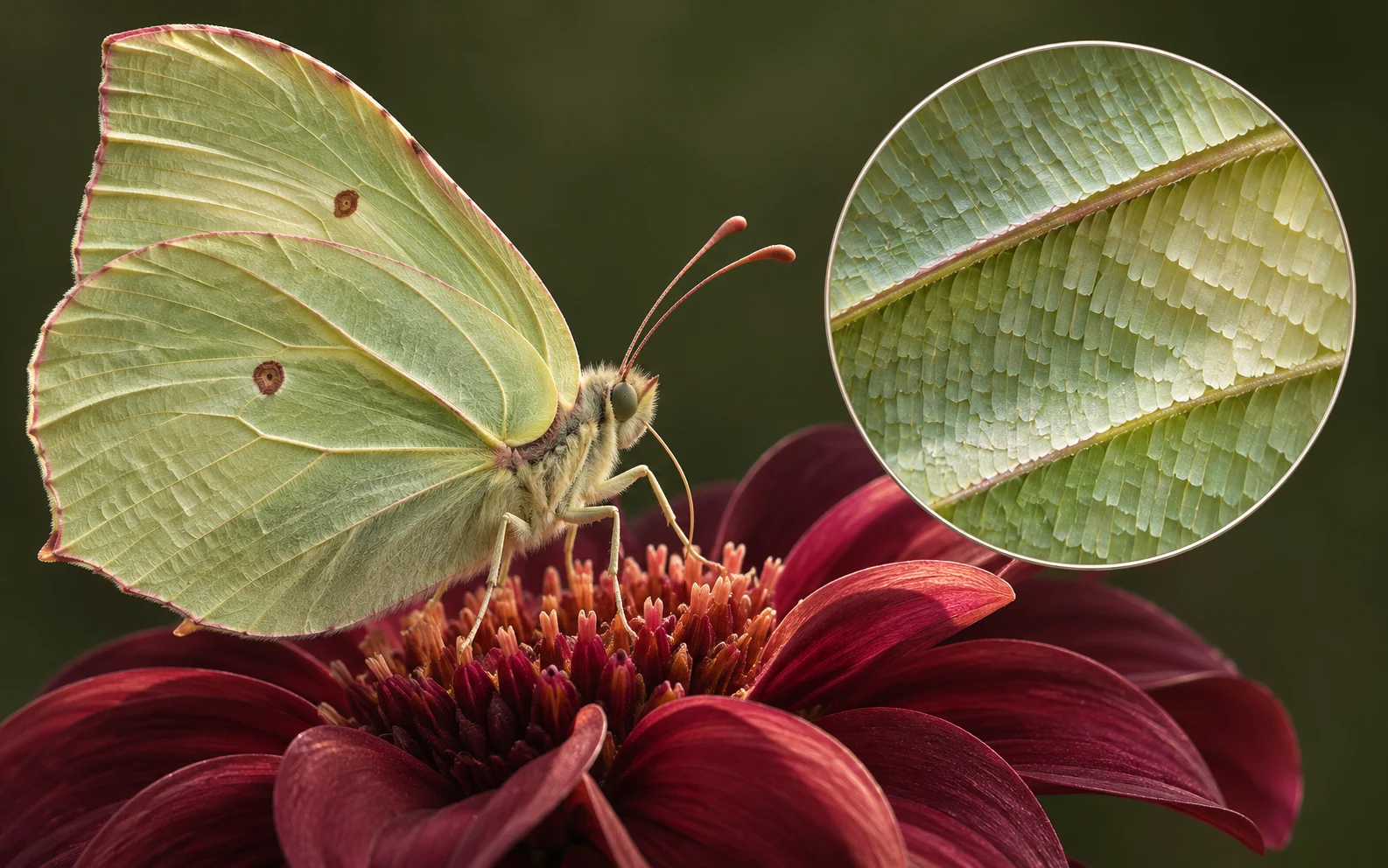
- 01
One field for photos: drag and drop, file picker, clipboard and Library
- 02
Topaz Gigapixel and SeedVR2 with settings from the catalog
- 03
Credit price before the run, before and after comparison and download
- 04
Enhancement history on the screen and every result in your Library
Topaz Gigapixel comes first in the list. It enlarges a photo two or four times and stays close to the original, with modes for regular photos, low resolution sources, graphics and text. SeedVR2 Upscale is the second option and outputs the picture at 1080p, 2K or 4K. No prompt is needed: the photo and the chosen size are enough, and the model restores fine detail on its own.
You can drag a photo into the field, pick it on your computer, paste it from the clipboard or take it from your Library with Add file («Добавить файл»). JPG, PNG and WEBP files up to 25 MB are accepted. Metadata is stripped on upload, and the model receives only the image, without the file name or details about you.
The credit price appears on the button before you start. The server calculates it from the selected model and the size of the future file. Credits are reserved while the model works and come back if it does not return a result. The finished shot opens in a before and after comparison, and you move the divider with a mouse, a finger or the arrow keys.
The result is saved to your Library and moves on from there: to Photo Studio, into a Design layout or into Video as the first frame. Upscale last, once the shot is chosen and fixed, because enlarging also keeps an extra finger or a crooked letter.
Frequently asked questions
Do I need to write a prompt to upscale a photo?
No. A photo and the chosen size are enough, and the model restores the details itself.
Which files can I upload for enhancement?
JPG, PNG and WEBP up to 25 MB. A photo from your Library is picked without uploading it again.
What if the enhancement fails?
The reason appears under the photo, and the reserved credits return to your balance.
Can I enhance a video the same way?
Clips have their own tools in Video processing («Обработка видео») in the Video section, and a link to it sits under the run button.