Lip sync
Lip sync and talking photos in Solistra
Lip sync («Липсинк») in Solistra matches mouth movement to speech, either on a finished video or on a portrait that becomes a talking clip. The audio comes from your own recording, from a voiceover made in the Audio section or is generated from text right on this screen with a voice from the library.
Open in Solistra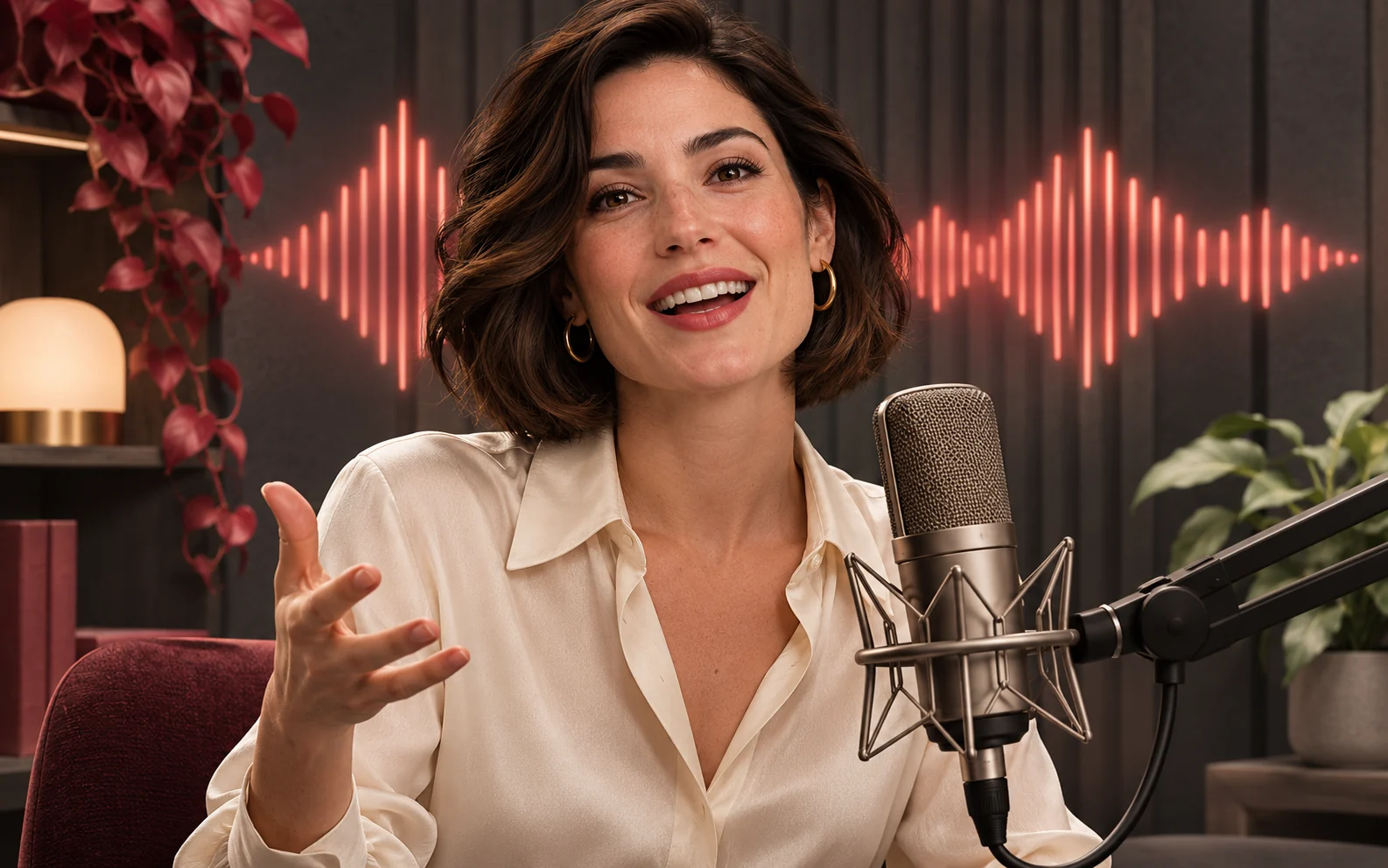
- 01
Two modes: a talking photo from a portrait or new speech on an existing video
- 02
Audio from your recording, from Audio or from text with a chosen voice
- 03
Pace, tone, stability and emotion of the voice are set before the run
- 04
The credit price is shown upfront and depends on the audio length and the model
On a video, the network changes the mouth area and tries to keep the rest of the frame untouched. There is no model to pick for video: a clip up to a minute goes to the most precise one, which handles profiles, close-ups and a hand near the face, and a clip up to two minutes goes to the one that accepts that length. On a photo, it adds facial expressions and slight head movement on its own, and you can pick the portrait model and compare two on a short excerpt.
The best source is a clear frontal face, even light and one person in the frame. Clean speech without background noise syncs more precisely. Under the rules, someone else’s face or voice is allowed only with that person’s written consent.
For tutorials and presenter videos, record or voice the script in Audio first, listen to it in full and only then start the sync. That way editing the text does not spend credits on video, and the voice sounds the same in every part.
Frequently asked questions
How is lip sync different from a talking photo?
Lip sync changes the lips on video that has already been shot, while a talking photo creates a clip from a single portrait. Both modes live on this screen.
What kind of video works best?
A large face, no sharp head turns and no hands in front of the mouth. The cleaner the speech, the closer the lips match.
There are several people in the frame. How do I choose who is speaking?
Press the button under the clip to mark the speaker: the frame opens large, pick a moment where the face is clearly visible and tap it. You can move or remove the marker. The marker is only needed when there is more than one face in the frame.
Can I use someone else’s voice?
Only with the written consent of its owner. You need the rights to the face and the voice, as the Solistra rules require.