Contents
On Higgsfield you'll come across different Seedance versions and several input modes. The official Seedance 2.0 tutorial explains how to work with references and stage an action. First make sure the version you picked accepts the file types you need. Then set up the scene so that each input is responsible for one clear part of the result.
Start with a simple sequence
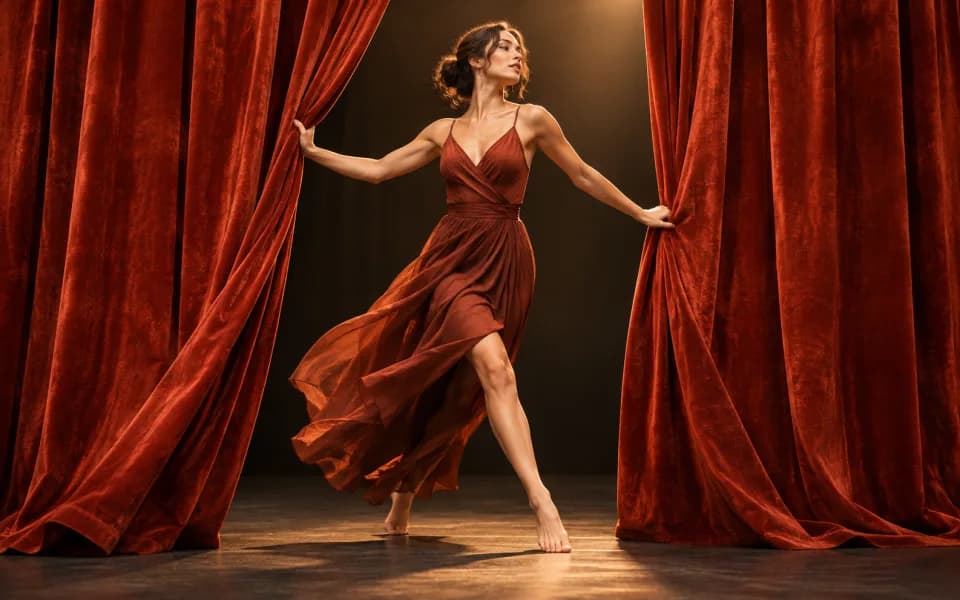
Picture three shots: a dancer stands at the edge of the stage, steps through a curtain and stops in a pool of light. Start your test with the medium shot. This is where the start of the movement, the shape of the fabric and the position of the hands all have to line up. A simple medium shot tells you more than trying to get the whole sequence at once, with camera changes and music.
Note where the curtain seam, the edge of the light and the stopping point are. Decide which side of the body is closer to the camera. In the source, leave room in the direction of the step. If you're using a ready-made look for the dancer, keep her silhouette, costume and the side the key light comes from. Pick a separate motion reference with a similar angle and framing.
Give each reference a role
Open the Seedance mode you need. If the interface lets you name several inputs in the text, check how it labels them after upload. Write down the role of each one. For example, the first source sets the look and the costume, the second shows the space, and the third sets the pace of the step. When a video serves as a motion reference, spell out which actions should carry over. Referring to every file the same way is easy only in the prompt. When you pick takes, you need to know where each detail came from.
Use the character reference for the dancer and her charcoal costume. Use the stage reference for the curtain and light. She takes one measured step through the parted velvet and stops with both feet visible. Keep a steady medium-wide view.
If a second character from the video slipped in, remove the extra figures from the input and define that source's role more precisely. If the model ignores the location, supply a photo where the curtain seam and the floor plane are easier to see. Start with a small number of inputs and add another one only for a specific job.
Break the scene into phases
Describe the starting state, the movement and the ending. For example: first the whole curtain is visible and a hand is already holding its edge. Then the dancer takes a step and the fabric moves aside. At the end, both feet rest on the stage and the hand drops. For several shots, you can prepare the start and the end separately in modes that accept those inputs. If features differ between versions, go by the screen of the current model.
If the mode offers several shots, start with a short sequence. Write down which event belongs to which shot. If the framing jumps in a way you don't want, split the scene into separate generations. That gives you an exact cut point and lets you replace one shot without regenerating the whole sequence.
Compare the result with the storyboard
| Checkpoint | What to check |
|---|---|
| Before the step | Recognizable face, correct costume, clear footing |
| As the fabric moves | The hand doesn't merge with the curtain, the fabric has a visible edge |
| After the step | Stage and lighting stay the same, feet stand on the floor plane |
| At the cut | The direction of the step and the character's position match in adjacent shots |
If the shape is unstable, reduce the range of motion first. If the costume changes, check whether another reference contains competing clothing. If the path is wrong, remove extra camera movement. If sound matters, compare the moment of the step with the audible contact and fix it separately if needed. Don't judge the sync from the first viewing alone.
Carry what worked over to the next shot
Record the last clean frame, the positions of objects, the light and the cut point. For the wide shot, keep the color and the direction of movement. For the detail shot, supply a source with the hand and a section of fabric visible. Use the same set of references only where it's needed. Save a good take separately while you try other settings.
Once you've gathered the material, check the cuts at normal speed. See whether the reasons for the movement are clear and whether the rhythm holds. If the edit rests on the medium shot, spend your final resources on getting it exactly right. The other shots can do a simpler job and may need fewer retakes.
Shoot an alternative if one complex shot won't hold
Split the pass through the curtain into two clips. The first ends when the fabric covers part of the figure. The second starts with the fabric and the dancer in nearly the same position, after the step. Use a shared feature for the cut, such as the edge of the curtain in the middle of the frame. Compare the anchor points and note where the segment gets cut. If the poses differ slightly, it's less noticeable behind a natural obstruction.
For the final version, compare a single continuous take with the edited pair. Judge whether the scene reads clearly and whether the light jumps. With the same story, the edited pair can be easier to revise. If the continuous shot holds the movement better, keep it as the anchor for the neighboring shots.
Seedance and its neighbors in Solistra
Solistra has its own counterpart for almost every Higgsfield model. In Video, clips from a photo run on Seedance, Kling, Veo and Hailuo, so it is easy to run one shot on two models and compare. Model descriptions are in the catalog. The rest is in the Higgsfield comparison.
Try it in Solistra
Sources and licenses
- Generating with Seedance 2.0 — Higgsfield
- How to Make AI Videos as a Beginner — Higgsfield
- How to Master AI Filmmaking — Higgsfield
- Text
- Solistra text. Our own wording and prompt examples, quotes under 15 words
- Images
Other images — Solistra image
- Checked
- November 12, 2026