Contents
The Higgsfield MCP integration lets you use a supported client as an interface to the service's tools. First, check that your client and your account support the connection option you need. Then start with a single task where it's easy to verify the inputs, the settings and the result. Which actions are available depends on your current connection and the integration version.
Keep preparation and execution apart
For a video with several shots, first ask the assistant to draft a storyboard and suggest prompts. You can do this before sending any files or generating anything. Decide separately which shot will be the first test, which inputs may be sent and how you'll check the result. Put the format, the length and the number of attempts into the plan.
Set a clear rule: first show the settings and the expected cost, then wait for your go-ahead. If the exact cost can't be retrieved through the available tool, check it in your account. A figure in the assistant's message doesn't confirm the rate on its own. Check your balance and history before a series of runs.
Connect the client using the official instructions
Open the Higgsfield help center and pick the instructions for your client. Use the connection described there and the standard sign-in flow if one is available. On the consent screen, check which account you're connecting and which permissions you're granting. Never paste a password, sign-in code or private key into the chat. If the connection needs a different setup, look it up in the official help for your version.
When the client shows its list of tools, check which actions are available. Finding a model, starting a run and reading the result may be separate commands. Ask the assistant to show the parameter names it intends to send. If the chosen mode needs an image, point to the exact file, not a vague reference to a folder.
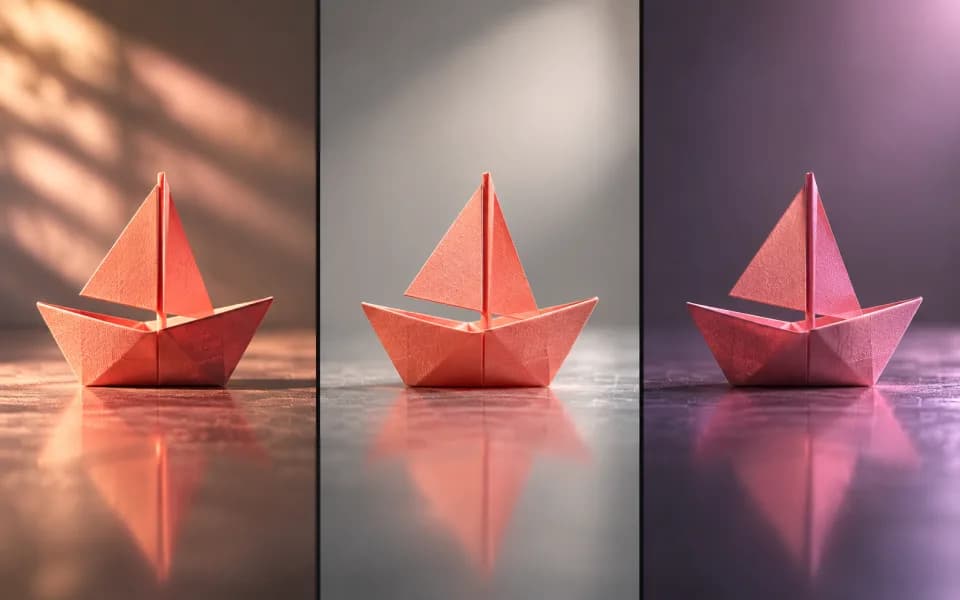
Prepare one Higgsfield image-to-video request for the approved paper boat reference. Show the model, input, duration, aspect ratio and expected cost if the connector can retrieve it. Wait for my explicit confirmation before starting any generation.
Test one task from start to finish
After you confirm, run one take and save the task ID if the client shows it. Check the status and the final file in your account. If the client lost the connection after sending, check the generation history first. Running it again may create a new task. If the output contains an error, find out at which step it happened: sign-in, upload, queuing or fetching the result.
| Situation | What to check |
|---|---|
| The client doesn't see the tools | Integration support, the account and the access you granted |
| A tool rejects the file | Input type, format and your rights to the file |
| The cost differs from what you expected | The actual model, the configuration and the history |
| A retry creates a duplicate | The status of the first task before sending a new one |
Plan a series and protect your project data
After a successful test, keep a log by shot. For each one, note the source, the approved text, the allowed number of attempts and the actual cost. Before handing over materials, make sure the client can reach only the files it needs. Check the data handling terms separately for Higgsfield and for the app you're connecting. For a commercial project, use inputs you're allowed to use and strip out details that aren't needed.
When you no longer need the connection, remove it in the client settings and in whatever account settings are available. Save the final files and the log you need, then make sure the tools no longer show up as available in the client. If you switch clients, check the permissions again and make one controlled test before a series.
Agree on a limit for a series of requests
For a three-shot project, first prepare a list of actions without running anything. Next to each one, note the source, the settings and the maximum number of attempts. Approve only the first. Once you have the result, check your balance and whether the shot is usable. If the cost is higher than estimated, stop the series and find out which configuration was sent. Once that's settled, approve the next run separately. In a team, specify who is allowed to approve charges.
A simple table helps you recover after a failure: scene number, task ID, time sent, status, link to the result and actual cost. If the client dropped the connection, start from the last saved row. Open the service's history and find the task by time. Ask the assistant to update the entry after you've checked. That keeps the series under control when you change clients or an upload fails.
Practice errors and retries on a safe example
Take an invented project with a single reference image. Before running it, write down the acceptable cost and how you'll check the result. After the first generation, simulate the case where the client's message disappeared or the connection dropped. Open the task history in your account and find that run. If it's still in progress, wait for its status. If it's finished, collect the result. If there's no clear match, check the time and settings first, then decide whether a retry is needed.
Save the finished prompt in the project, separate from the technical connection details. Before sending the next request, make sure the file and settings belong to this exact shot. Any access you grant should have a clear owner and purpose. This is especially useful when several people work on the same project.
MCP in Solistra
Solistra has its own counterpart for almost every Higgsfield model. Solistra connects to Claude and ChatGPT over MCP on any plan. The connection steps are on the MCP page. Differences between the services are collected in the Higgsfield comparison.
Try it in Solistra
Sources and licenses
- How do I connect Higgsfield to an AI agent? — Higgsfield
- How to Generate AI Videos in Claude With the Higgsfield MCP Connector — Higgsfield
- Terms of Use Agreement — Higgsfield
- How do credits work? — Higgsfield
- Text
- Solistra text. Our own wording and prompt examples, quotes under 15 words
- Images
Other images — Solistra image
- Checked
- November 12, 2026