Contents
- Why a character drifts in video
- Photos of one character for different angles
- Reference roles: person, clothes and location
- Hair and wind without losing the face
- Blinks and gaze in a close-up
- Two people in a shot doing different things
- A real person: consent before generation
- Labeling synthetic footage
- How to check the result
- Common mistakes
- Frequently asked questions
- Sources and licenses
In AI video, a character loses themselves not only between shots but inside a single clip: the cheekbone line shifts as the head turns, a strand of hair merges with a cheek, the eyes open a different color after a blink, and halfway through the scene a gesture gets handed to the person next to them on the couch. This guide collects techniques that keep faces and roles steady in motion. You'll learn which photos of a character to prepare for the angles in your storyboard, how to separate the roles of references for the person, the clothes and the location, how to bring hair and gaze to life without distortion, how to stage two people in one shot and what to do before generating if the video features a real person or a realistic synthetic scene.
Why a character drifts in video
A video model holds on to someone's appearance based on what it sees in the input and reads in the prompt. If the inputs contradict each other, the text is overloaded or the motion is too large, the model fills in the gaps itself. For a series of stills with one character, there's a separate guide on one character across different shots: a character sheet description, references and training. Video adds three new challenges on top of that.
- Angle in motion. A head turn reveals a side of the face that wasn't in the input. The wider the turn, the more the model invents on its own.
- Small facial movements. Blinks, shifts of gaze and moving strands change the outline of the face on individual frames, and those frames are visible in a close-up.
- Several figures. With two people in the shot, the action from the prompt can jump to the other person, and clothes and sides can swap.
The general principle for all three: one input handles one job, one action goes in one take, and every detail can be checked against its source.
Photos of one character for different angles
A storyboard usually calls for a front view, a three-quarter view and a profile. If you feed in only a front view and ask for a profile, the model builds it on its own and may shift the age or the shape of the nose. It's more reliable to prepare a set in advance.
Pick sharp shots of the front, three-quarter and profile views under similar lighting and on a calm background. Check the hair length, the part, the collar and accessories: every photo should show the same person in one consistent look. A contact sheet is handy for your own selection, but feed in separate frames the way the chosen model's mode requires. Google's Veo 3.1 guide and Runway's Gen-4 reference guide describe working with reference images, and how many you can use depends on the model and mode.
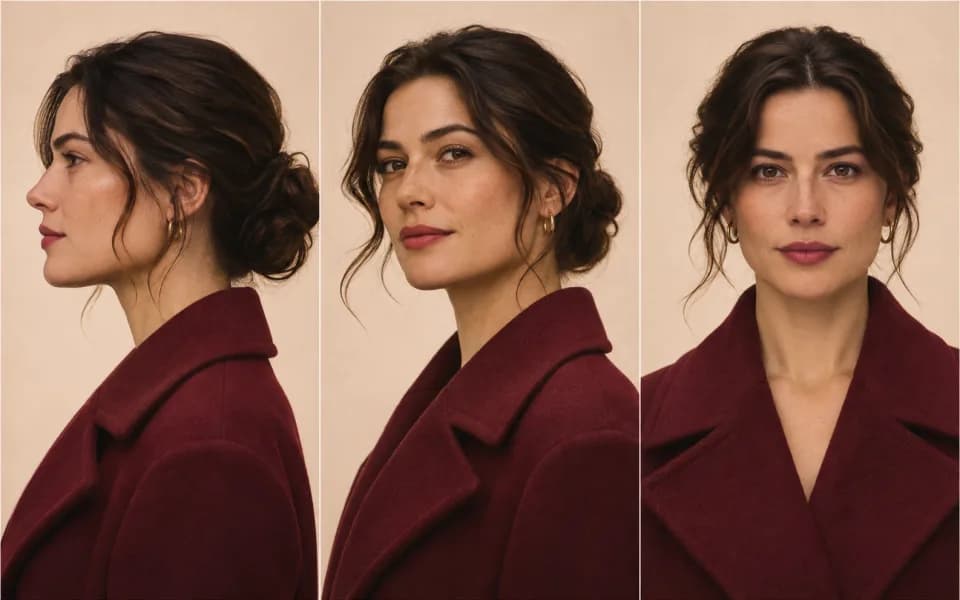
An example scene by a window: at first the character stands in three-quarter view, then looks outside, and after that you need a profile. Compare two approaches. In the first, feed in one front view and a set with the profile in a mode that accepts several inputs. In the second, prepare a separate profile source and animate each angle on its own.
Three-quarter view of the same woman in the reference, wearing the maroon wool coat. She turns slightly toward the light and holds her gaze. The camera stays at eye level.
Profile view of the same adult in a charcoal coat, softly lit from the window. The person turns their eyes toward the glass with a small controlled head movement. Preserve the hairstyle and collar.
When comparing, remember that the angle changes the visible width of the face. Compare several stable details together: the part, the cheekbone line, the collar. If the outer edge and an inner detail change in step, it's a change of angle. If one disappears or changes proportions, check the source and the amplitude of the turn.
When a big turn still breaks the face, don't stretch it out in one clip. Keep two stable shots of the same character and cut the change of angle through an object shot, such as a hand on the windowsill.
Reference roles: person, clothes and location
Two photos with different jobs give a mixed result if the model treats them the same way. A face from a street photo moves onto the character, a mannequin's pose moves onto the person, and a background with a bright jacket competes with the costume. So each input needs one role, and that role is named directly in the prompt.
Gather a main reference of the character, a photo of the clothes on a plain background and a separate frame of the location. The clothing and location photos shouldn't have any people in them: any stray person can become a false hero. In the room photo, remove bright clothing that would compete with the costume. For your own notes, label the visible feature of each input, such as the hairstyle, the shape of the mug handle and the position of the window. Feed them into the model through the available fields and name the roles the way the interface names them. Reference modes exist in Veo on Google Cloud and in xAI's Reference-to-Video, among others, but the number of inputs differs between models.
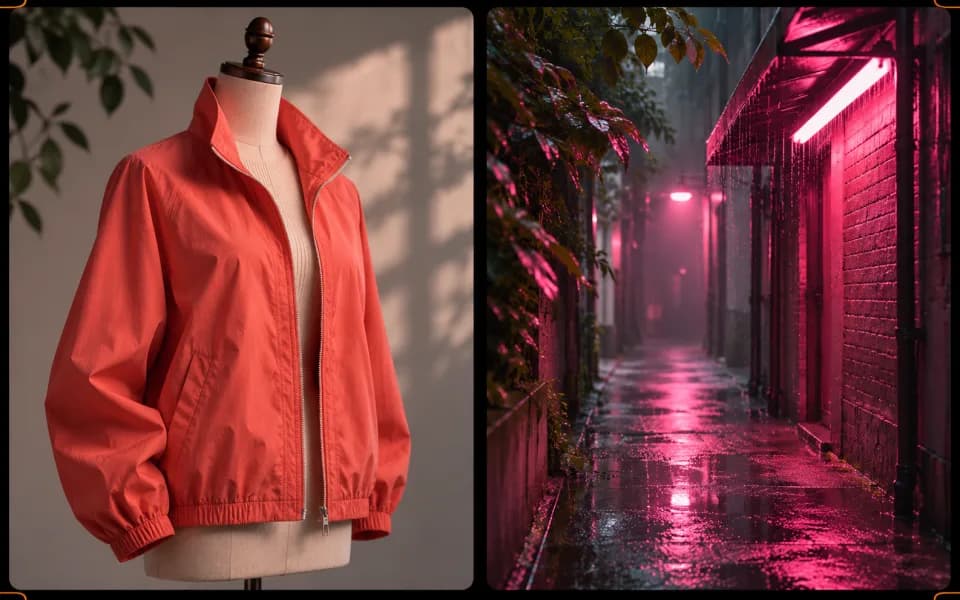
Use the portrait reference for the craftsperson, the product photo for the terracotta cup and the room reference for the window light. The craftsperson lifts the cup slightly with one hand. Keep the camera still.
Add inputs one at a time. First feed in the character and the object, then add the background in the same scene. If the first take holds the form, check whether it survives the third input. If the face or clothes change after you add the location, look for another person in the location photo. If the cup starts to look like a prop from the workshop, replace the object photo with a cleaner one.
If faces blend, repeat with two references instead of three. If the clothes bring someone else's pose with them, shoot the jacket on a neutral mannequin. When the separate references mode stays unstable, build one consistent reference frame with the approved character, object and light, and animate it as a single image. That route is covered in detail in the guide on first and last frames, and the general rules for image inputs are in the article on references.
Hair and wind without losing the face
You can get noticeable hair movement without turning the head. Set the wind direction relative to the frame and pick one loose strand. The face keeps a stable silhouette, and the shot still looks alive.
Prepare an angle where the strand is separated from the cheek and doesn't cover the eyes. Note which side the wind comes from and where the hair has room to move. Describe a light gust, the strand shifting to one side and settling. On the first pass, don't add camera movement or a change of emotion.
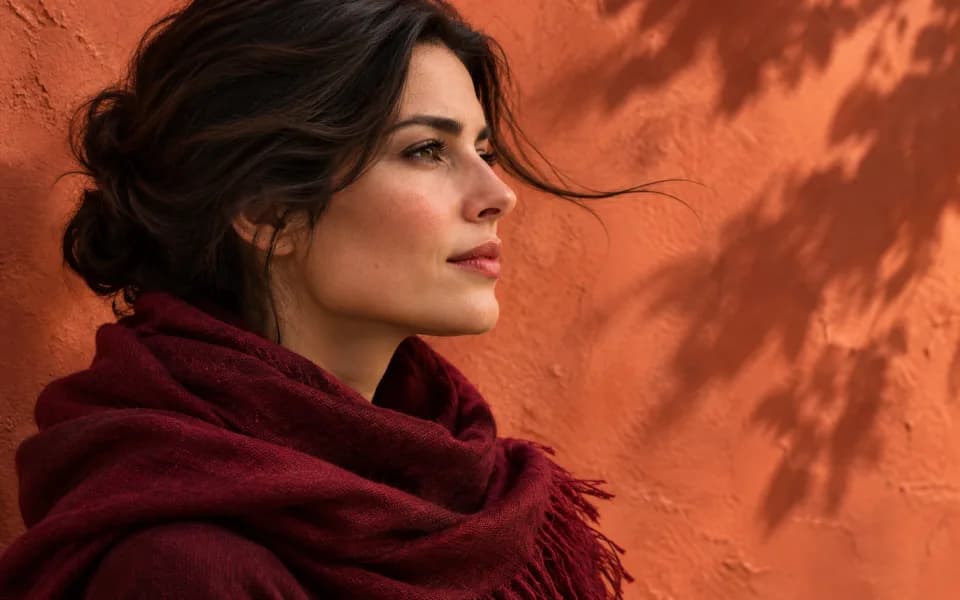
A light breeze lifts a few loose strands away from her cheek toward frame right. Her head stays in profile and her expression remains calm. The hair settles softly.
Compare the movement of one strand with a soft wave through the whole hairstyle while the camera stays still. Freeze the frame at the point of maximum movement and look at the edge near the face. If the strand becomes part of the outline of the nose or eye, change its starting position, start the gust in the opposite direction or use a source with a bigger gap. If the profile itself changes, reduce the head movement. In strong wind, cut down the number of moving details, and for a real storm, prepare a different angle where the face is smaller.
Blinks and gaze in a close-up
A blink is easiest to check in a close-up. It should be short, symmetrical within natural facial movement and shouldn't change the direction of the gaze. Strong articulation and head turns make selection harder, so it's better to ask for a blink in a calm shot, for example before speech begins. If the line will later be synced to a voice, the source for that is covered in the guide on speech and voice in AI video.
Use a source with sharp eyelids, soft light and no bright highlight right in the pupils. Note the eyeline and the shape of the eyes. If you're using performance transfer, like Runway's Act-Two, choose a performer reference with a similar head angle.
A calm close-up of the woman's eyes. She blinks once naturally and resumes the same steady gaze. The head and camera stay still in soft even light.
Compare a neutral blink with a blink after a slight shift of gaze at the same duration. Check whether the model turns the pause into a repeat. Then compare the pupils before and after the eyelids close: sometimes the eyelids look convincing, but the direction of the gaze has already changed.
If the eyes open a different color or shape, check the sharpness and brightness of the source and reduce the facial movement. If the eyelids open with a jerk, remove extra facial movement and shorten the shot. If the model blinks twice, cut one clean gesture from the stable part. When the close-up stays unstable, move to a medium shot where the gesture reads without fine detail.
Two people in a shot doing different things
When two characters do different things, each needs a stable marker: their side of the frame, the tone of their clothes or their pose. The simpler the link between the words in the prompt and the silhouette, the lower the risk that the model swaps their actions. Runway has a separate help article on multi-character dialogues in Act-Two.
Block out the characters before animating. One stands on the left in dark clothes, the other sits on the right in light clothes. Leave free space on the table for the object and don't put anything extra near the hand. On the first pass, only one character gets to move, and the other holds their pose and follows the action with their eyes.
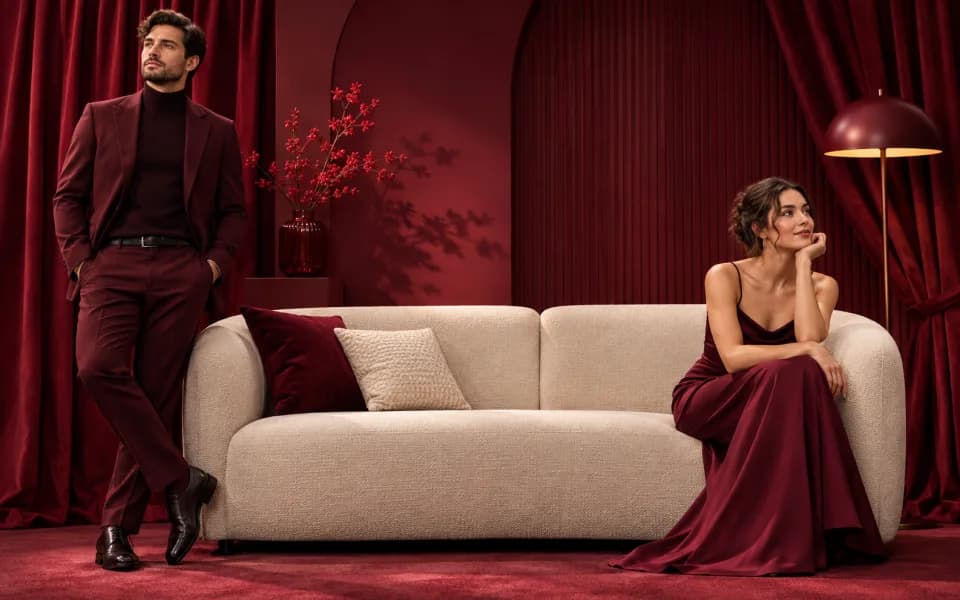
The standing person in a dark jacket on the left places one envelope on the table. The seated person on the right stays still and follows it with their eyes.
In the second take, add a small shift of gaze for the seated person and check that both don't start reaching for the envelope. If the gesture goes to the second character, shorten the description and repeat the side and clothing right next to the verb. If the roles can only be told apart by color, add a clear pose: in dim light the color of clothes gets lost, but the geometry of the scene stays. If the envelope gets lost between the figures, reduce the amplitude and specify the spot on the table.
Handing an object from one person to another is what models hold worst of all. It's more reliable to shoot it as a separate detail of hands and envelope, and add the second character's reaction as the next shot with the same gaze direction and light. For close-up hands and gripping objects, there's the guide on hands and fabric in AI video, and eyelines between shots are covered in the guide on editing continuity.
A real person: consent before generation
Before animating someone else's portrait, agree on the purpose and the way it will be shown with the person the image depicts. Explain in advance whether speech will be added, whether their appearance will change and where the result will appear. A nod animated from a portrait and the same portrait speaking a line in an ad count as different uses, even if the source is the same.
Write down the purpose, the platform, the type of motion, whether there's speech and how long it will be used. Clarify who has the right to hand over the photo. Keep the approved source separate from working versions, strip unnecessary metadata from the copy and check the terms for passing the image to the chosen service. Google Cloud publishes separate responsible use guidelines for Veo, and they're worth reading before working with real faces.
A brief natural blink and small nod from the approved portrait. Keep the original facial features and framing. No dialogue, added action or change of context.
Before handing off the file, compare the edit with the description of the agreed scenario. A new title or a new publishing context changes how viewers perceive the person. If the client asks to add speech, a new role or a commercial context, get the consent updated before generating. If the rights to the photo are unclear, find an approved source or use a completely fictional character.
Labeling synthetic footage
Viewers benefit from knowing where a realistic video shows a generated event. Labeling rules depend on the platform and the nature of the edit, so check especially carefully with scenes involving real people, places and events. YouTube has a help article on disclosing AI content and a separate post about updates to its labels, and it's a good example of disclosure done through a built-in setting at upload, not just words in the description.
In your edit log, note the origin of each scene: filmed, fully generated or substantially altered. Before uploading, open the platform's current help page and find the disclosure setting you need. If the label has to appear in the video itself, leave room for it in the frame ahead of time.
Cinematic generated illustration of a small sailboat on a pale sea. Use a quiet wide frame with a clean lower area reserved for an editorial disclosure added in post.
If replacing a shot changed the nature of the edit, update the label. If a new realistic insert was added after the first check, review the setting again. After export, make sure the label is readable in the uploaded version, not just in the draft.
How to check the result
It's easier to check by specific signs than by overall impression. Put the key frames side by side at the same scale and go through the list.
- Angles. Neighboring shots are recognizable by the hairline and cheekbones, and the collar and clothing color match.
- References. On a freeze frame, every detail can be traced to its source: the character's hair part, the cup's handle and color, the window on the correct side of the background. There's exactly one hero in the shot.
- Hair. The eye and the profile read for the whole take, strands move from one point, and the hairstyle keeps its shape after the gust.
- Eyes. The gaze before and after the blink matches, the eyelids don't change the outline of the face, and there's no jump in exposure.
- Two people. Each stays on their side and in their own clothes, the object arrives at one spot, and the observer doesn't repeat the action.
- Rights and labeling. There's a record of the agreed use, the result matches it, and synthetic scenes are labeled in the uploaded version.
Watch the clip at normal speed first, then step through the problem phase frame by frame. If a defect takes up a single frame outside the main action, you can trim it. If it changes the event itself, it's better to replace the segment. Keep one accepted fragment as a reference for the next scenes with this character. How to keep these notes and compare takes is covered in the guide on video prompt takes and logs.
Common mistakes
| Symptom | Likely cause | What to do |
|---|---|---|
| Age or hairstyle changes between shots | Sources with different hairstyles, heavy retouching | Keep photos of one look, don't change the light, the costume and the set of inputs all at once |
| The face blends with someone else's | There's a person in the clothing or location photo | Remove people from secondary inputs, reduce the number of references |
| The clothes arrive with someone else's pose | The jacket was photographed on a person | Shoot the item on a neutral mannequin |
| A strand merges with the nose or eye | No gap between hair and face | A different source, the gust in the opposite direction |
| The eyes open a different color | A soft source, extra facial movement | Sharp eyelids in the input, less facial motion |
| The gesture goes to the second character | The character's marker is far from the verb | Repeat the side and clothing next to the action |
| The label disappeared in the uploaded video | Only the draft was checked | Check the final export and the platform setting |
A separate mistake when working with real people: quietly expanding the scenario. An added line or an advertising title needs new consent, even if the motion stayed the same.
Frequently asked questions
How do I keep the same character face across AI video shots?
Prepare separate sharp photos of the character in the angles you need, under similar light and in one look, feed them in a reference mode and keep head movement small. A big turn is better split into two shots with separate sources and cut together through an insert.
How many references can I give a video model?
It depends on the model and mode, so check the description of the specific model. The practical rule is something else: if faces blend, reduce the number of inputs, for example from three to two, and give each one a single role.
Why does hair cover the face in AI video?
Usually the strand in the source lies too close to the cheek or eye, and the gust is aimed toward the face. Use a frame with a gap, set the wind to blow away from the face and ask for one strand to move without a head turn.
How do I stop two people in a video from swapping actions?
Give each one a stable marker: their side of the frame, their pose and the tone of their clothes. Write the side and clothing right next to the verb, and on the first pass give motion to only one character.
Can I animate a photo of a real person with AI?
Only with that person's consent to a specific scenario: the purpose, the platform, whether there's speech and for how long. For a test, use simple motion with no statements in their voice, and if the rights to the photo are unclear, work with a fictional character.
Do I need to label generated scenes in a video?
The rules depend on the platform and the nature of the edit. Before uploading, open its current help page, turn on the built-in disclosure setting if it's required and check the label in the final version.
Try it in Solistra
Sources and licenses
- Generate videos with Veo 3.1 in Gemini API — Google AI
- Creating with Gen-4 Image References — Runway
- Reference-to-Video | SpaceXSI Docs — xAI
- Generate videos from references — Google Cloud
- Image to Video Prompting Guide — Runway
- Gen-4 Video Prompting Guide — Runway
- Character Animation with Act-Two | Runway Academy — Runway Academy
- Performance Capture with Act-Two — Runway
- Video generation prompt guide | Gemini Enterprise Agent Platform — Google Cloud
- Creating Multi-Character Dialogues with Act-Two — Runway
- Responsible AI for Veo on Gemini Enterprise Agent Platform video generation — Google Cloud
- Disclosing use of GenAI content — Android phone & tablet — YouTube
- Updates to AI content disclosure and labels — YouTube
- Text
- Solistra text. Our own wording and prompt examples, quotes under 15 words
- Images
Other images — Solistra image
- Checked
- November 12, 2026