Contents
- One line per pass
- How to tell the model who speaks the line
- A source for lip sync
- The frame
- The sound
- Checking the offset
- One voice across a series of scenes
- Pauses in the voiceover
- Marking up before generation
- Editing the pause
- How to check the result
- Common mistakes
- Frequently asked questions
- Sources and licenses
Speech in generated video breaks for four predictable reasons: the model mixes up who's talking, the lips miss the sounds, the voice changes from scene to scene, and pauses either get swallowed or turn into a hole of silence. Each of these can be solved before the final generation if you build the frame correctly, mark up the script and keep the voice on its own track. This guide collects techniques for all four cases, with prompts and checks for the edit. Line syntax for specific models and a table of speech languages are covered in the guide on sound in video. Here the focus is on getting a line all the way to the edit.
One line per pass
Two lines in one clip often produce extra mouth movements, the wrong speaker or phrases that run together. For a reliable edit, start with one line per clip. Make the second line a separate clip, and put a listener's reaction between them if needed. It's slower than asking the model to act out the whole dialogue at once, but you can later replace any phrase without touching the rest.
Speech is easier to work with when the timeline has separate layers from the very start: speech, actions, ambience and music. Even if you start with a single clip with sound, keep the original file and mark where each phrase begins. The marker goes on the first frame of lip movement, and for each line you mark the pause where a cut is possible. Then replacing a phrase, inserting a reaction and adjusting a pause all happen without rebuilding the whole scene.
| Task | Where it's solved | Main technique |
|---|---|---|
| Who speaks | The prompt and the frame composition | The speaker is named by side of frame and clothing, the listener stays silent |
| Lip accuracy | The source and the audio track | Frontal view, visible mouth, a clean line with pauses at both ends |
| One voice across a series | Recording the voiceover | Every phrase in one voice under the same conditions |
| Pauses | Script and edit | Marked-up pauses, phrases as separate fragments |
How to tell the model who speaks the line
The model can't see who you had in mind for the line. If there are two people in the frame and the prompt says "she says," the voice may go to either of them, or even both. So name the speaker unambiguously: by side of the frame and a noticeable piece of clothing. "The woman in the rust coat on the left" leaves no room for doubt. "The heroine" does.
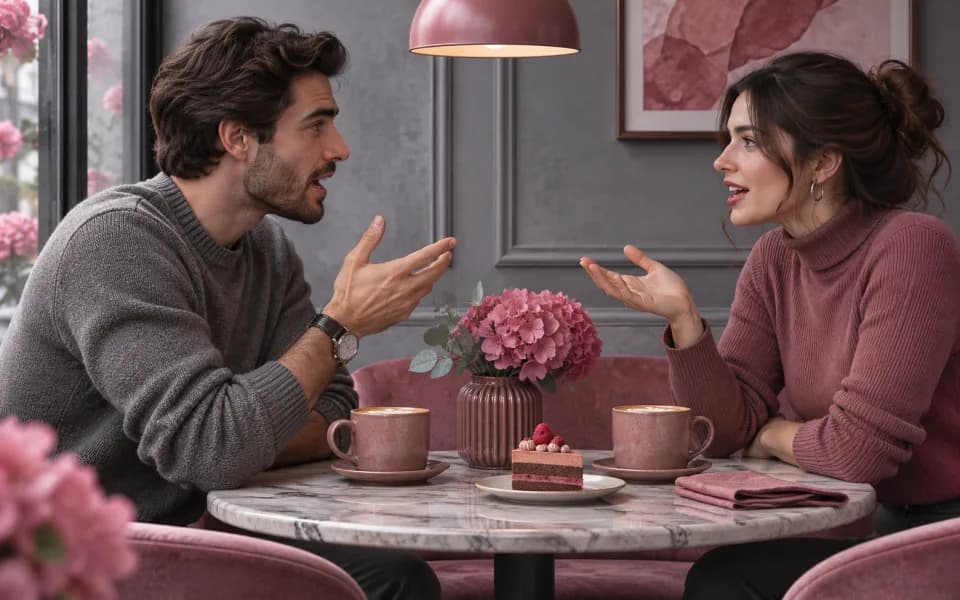
Three rules for a prompt with a line of dialogue:
- The line comes right after the speaker's description. First who and where, then the speech verb and the text. Google's Veo 3.1 guide recommends putting specific speech in quotation marks, and the same logic works with other models.
- Give the listener a separate task. Write that the second character listens silently with closed lips, shifts their gaze or nods. Without that, the model may hand them part of the articulation.
- Both faces visible. Place the characters on opposite sides and in different poses. Check on the source frame that the speaker's mouth is visible and the listener keeps a neutral expression.
The woman in the rust coat on the left says: "I left the key by the window." The man in the grey sweater on the right listens quietly with closed lips and glances down at the table. Soft café ambience, locked medium shot, both faces visible.
The person on frame left says: "Meet me by the side door." The listener on frame right stays silent and glances toward the door. Keep both faces visible, steady camera, quiet hallway sound.
If both people end up talking, don't rewrite the prompt forever. There are two reliable ways out. One: a close-up of the speaker only, with the listener's reaction as a separate shot. Two: voice the scene separately and lay the voice over a clip where the characters only act. It's worth comparing a wide shot of two people with a close-up of the speaker on the same words and pace: in the close-up, who owns the voice reads more reliably, while the wide shot shows the reaction better. How to shoot a reaction and an insert as separate shots is covered in the guide on inserts and reactions.
If you need a line in Russian, check what the chosen mode supports and listen to the result before editing. The video model documentation we checked doesn't list Russian among its speech languages, with details in the guide on sound in video. When Russian speech matters, it's more reliable to make a silent shot with the character acting and record the voice separately.
A source for lip sync
When the voice is recorded separately and the lips are fitted to it, the source decides the quality. Sync is easier both to make and to judge when the lips are fully visible and the face stays in focus. For the first test, remove everything that keeps the model from seeing the mouth: a hand at the chin, a microphone in front of the lips, a hard profile, quick head turns.
The frame
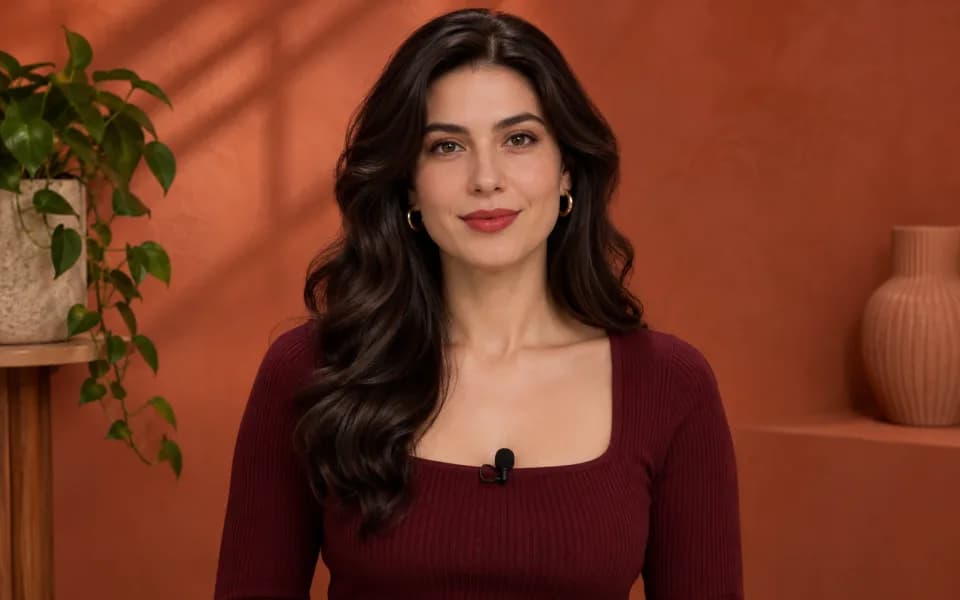
A medium close-up with a neutral start works well. The mouth opens enough for natural articulation, the shoulders are relaxed, the background is plain. If you're generating the frame specifically for lip sync, ask in the prompt for a calm face and one small movement only after the last word, such as a nod. Gestures in the middle of a phrase are the most common thing that breaks sync.
Front-facing medium close-up of a presenter in a plain charcoal studio, relaxed expression and clear mouth visibility. She holds a steady position, shoulders relaxed, hands out of frame. A small nod only after the last word of the sentence.
The sound
Record a clean line without music and leave short pauses at both ends. Music and noise under the voice throw the model off, and it picks up the rhythm in the wrong place. For the first test, take one short phrase with the sounds m, b and p: the lips close on them, so you can clearly see whether the sync lands. Mark the start of the first consonant, the middle and the end on the track.
Checking the offset
Compare the lip closure on the first and the last consonant. If the offset is the same, the error is constant and you just need to slide the track. If the offset grows toward the end, a simple shift won't do it: check the duration and frame rate of the source files. If the break shows only on a head turn, shorten the gesture or recut the clip on a calm section.
Break long speech into phrases and sync them one at a time. In a difficult phase where the character turns away, put in a cutaway if the meaning allows, and keep the stable lines on screen. Lip sync models, their length limits and the photo modes are covered in the guide on lip sync.
Stable close-up of a presenter facing the camera with a visible mouth and relaxed shoulders. Preserve the natural face, no hand gestures near the chin. A small nod only after the last word.
One voice across a series of scenes
If you voice each clip independently, the voice drifts: pitch, pace, distance to the microphone and room acoustics all change. In a single video, that sounds like a new narrator took over. The fix is simple in principle and takes discipline: one voice track for the whole episode, with the picture cut to it.
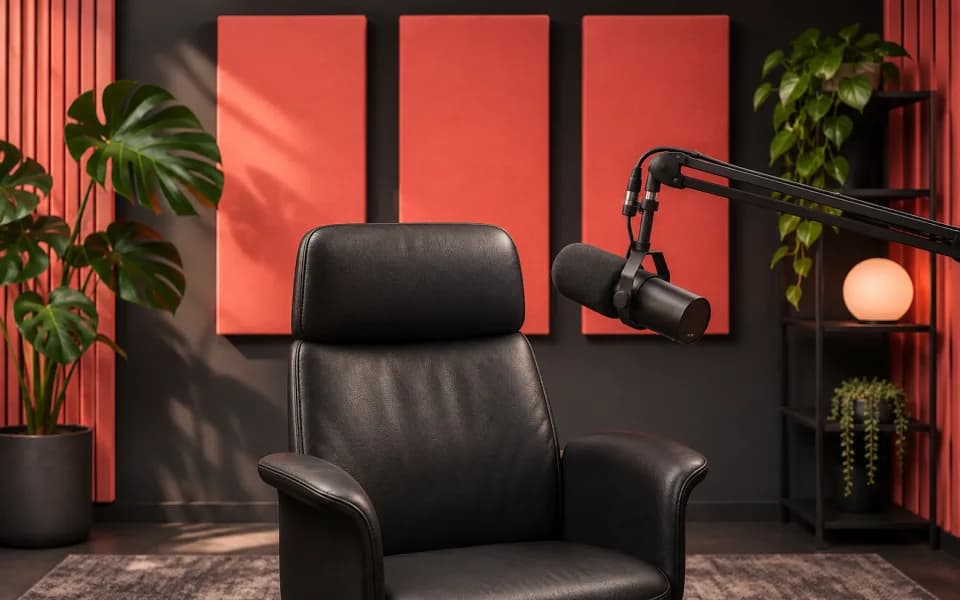
The workflow:
- Prepare every line in the episode in one voice and at the same distance to the microphone. If the voice is generated, use the same voice and the same settings for every phrase. You can voice text with a chosen voice in Audio («Аудио»), with more in the guide on text to speech.
- Mark the speakers in the script and keep the order of the phrases. One continuous recording split at the pauses is better than several separately recorded fragments: the pace and loudness in it match on their own.
- For each clip, take the matching segment of that track, if the sync mode lets you upload your own audio.
- Keep location ambience on separate tracks. That way a change of place is heard in the background while the narrator stays the same.
Use one calm adult narrator with the same speaking distance and steady pace in both scenes: first a windy street at dusk, then a quiet room with a ticking clock. Keep dialogue clean and place the location ambience on a separate layer.
If you need a consistent voice from a model with built-in sound, describe it in the same words in every prompt of the series: age, manner, pace, closeness to the mic. That doesn't make the voice identical, but it narrows the spread.
Same calm adult narrator throughout, speaking at an even pace with soft articulation. Clean close microphone sound, no music. A brief pause after the final phrase.
When the voices of two fragments still differ, find the same vowel in both and compare it by ear. If the difference is only in loudness, match the levels in the Video editor. If it's audible only at the cut, add a suitable quiet background under the join. If the timbre is different, re-record the problem phrase under the same conditions or replace the whole short track. A splice of two mismatched timbres looks invisible on paper, but the ear catches it immediately. How to keep the character's appearance from scene to scene is covered in the guide on a consistent character.
Pauses in the voiceover
A pause separates one thought from the next and leaves room for a reaction or a detail shot. A model may swallow a pause or stretch it, so in the prompt you say after which thought the voice stops, and set the exact length on the timeline.
Marking up before generation
Read the text out loud and split it into units of meaning. Mark in the script where each pause is and what goes into it: a reaction, a detail, a change of location. Generate or record the phrases so the track has clean edges and natural breathing. Separately, save a short clean background of the same room.
The narrator says: "The door was open." A short, natural pause. Then the narrator adds: "The room was completely empty." Quiet, close voice, no music.
The narrator says: "There was an envelope on the table." A short, natural pause. Then: "I recognized it at once." Close voice, even pace, no music.
Editing the pause
Compare a pause inside one recording with phrases spread apart on the track. The second approach gives precise control: put the insert under the gap and slide the second phrase until the viewer has had time to take in the detail. Start the next line only once the previous thought has landed.
If the voice swallowed the pause, split the phrases into two audio fragments and move the second one. If the gap drops into harsh digital silence, lay quiet room tone under it. Don't trim the breath right up against the start of the second phrase, and leave a little of the original sound near the cut. When the insert doesn't fit into the pause, shorten it or move it to the next natural pause. Clear speech matters more than a detail shown at exactly the second you planned. More on room tone and sound transitions is in the guide on sound in the edit.
How to check the result
Speech gets checked in two passes: sound without picture, and picture without sound. In the first, the speech should be intelligible. In the second, it should be clear whose lips are moving. If one check passes only thanks to the other, the error isn't fixed, just hidden.
- Who speaks. Only the speaker's lips move, the listener stays silent, and the start and end of the phrase are available for editing.
- Lip sync. On m, b and p the lips close on time, at both the start and the end of the phrase. The line starts and ends together with the facial movement.
- Sync at the start and the end. A constant offset and a gradually growing drift are fixed differently, so check both points.
- One voice. No change of voice or room is audible at the cuts. A change of ambience belongs to the scene only.
- Pauses. Phrases read as separate, the detail is visible in the gap, no word is clipped and there's no cut-off breath or background.
- Different devices. Listen to the speech on a phone at normal volume and on headphones, then listen separately to the background in the pauses.
When comparing takes, match their loudness. The louder version seems more expressive even when its rhythm is worse. Save the approved take separately and write down next to it what was generated together with the picture and what was added afterward. That note comes in handy when you need to replace one line without rebuilding the whole soundscape.
Common mistakes
- Two speakers in one prompt. The model can't tell whose phrase it is. One line per clip, the second as a separate shot.
- A speaker with no identifying details. "He said" in a frame with two people. Name the character by side of frame and clothing.
- A listener with no task. If you don't write that the second person stays silent with closed lips, they may start articulating.
- A hand at the chin in the source. A microphone, a palm or hair in front of the mouth breaks lip sync in any model.
- Music under the voice. The sync model picks up the rhythm of the instruments. Feed it a clean line.
- Every phrase in a different voice. Voicing clips independently changes the timbre and pace. One track per episode.
- A pause that drops into digital silence. There's a hole between phrases even though room tone is audible in the neighboring frames. Fill the gap with the room's background.
- Breath trimmed too tight. The second phrase starts with a click. Leave a little of the original sound at the cut.
Frequently asked questions
How do I make the right character speak in AI video?
Name the speaker by side of frame and clothing and put the line in quotation marks right after their description. Give the second character a separate task: listens silently with closed lips. If the model still mixes them up, make a close-up of the speaker and a separate reaction shot.
Why don't the lips match the voiceover?
Most often the source is the problem: a face in profile, a hand at the mouth, a quick head turn or music under the voice. If the offset is the same throughout the phrase, slide the track. If it grows toward the end, check the duration and frame rate of the files.
How do I keep the same voice across several videos?
Prepare every line in one voice, under the same conditions and, if possible, as one continuous recording split at the pauses. Cut the picture to that track and keep the location ambience on separate layers.
How do I add a pause to an AI voiceover?
Say in the text after which phrase the voice makes a short, natural pause, and set the exact length in the Video editor («Монтаж»). If the pause gets swallowed, split the phrases into two fragments, move the second one and fill the gap with quiet room tone.
Can I generate dialogue in Russian?
The video model documentation we checked doesn't list Russian among its speech languages, so the result may come out accented or distorted. Try a short line and listen to it before editing, and for important Russian speech, make a silent shot and record the voice separately.
Try it in Solistra
Sources and licenses
- Generate videos with Veo 3.1 in Gemini API — Google AI
- Creating Multi-Character Dialogues with Act-Two — Runway
- Character Animation with Act-Two | Runway Academy — Runway Academy
- Character Script to Video — Runway
- AI Audio Generation Overview — Runway Academy
- Change Voice in Act-Two — Runway Academy
- Creating with Seed Audio 1.0 — Runway
- Text
- Solistra text. Our own wording and prompt examples, quotes under 15 words
- Images
Other images — Solistra image
- Checked
- November 12, 2026