Contents
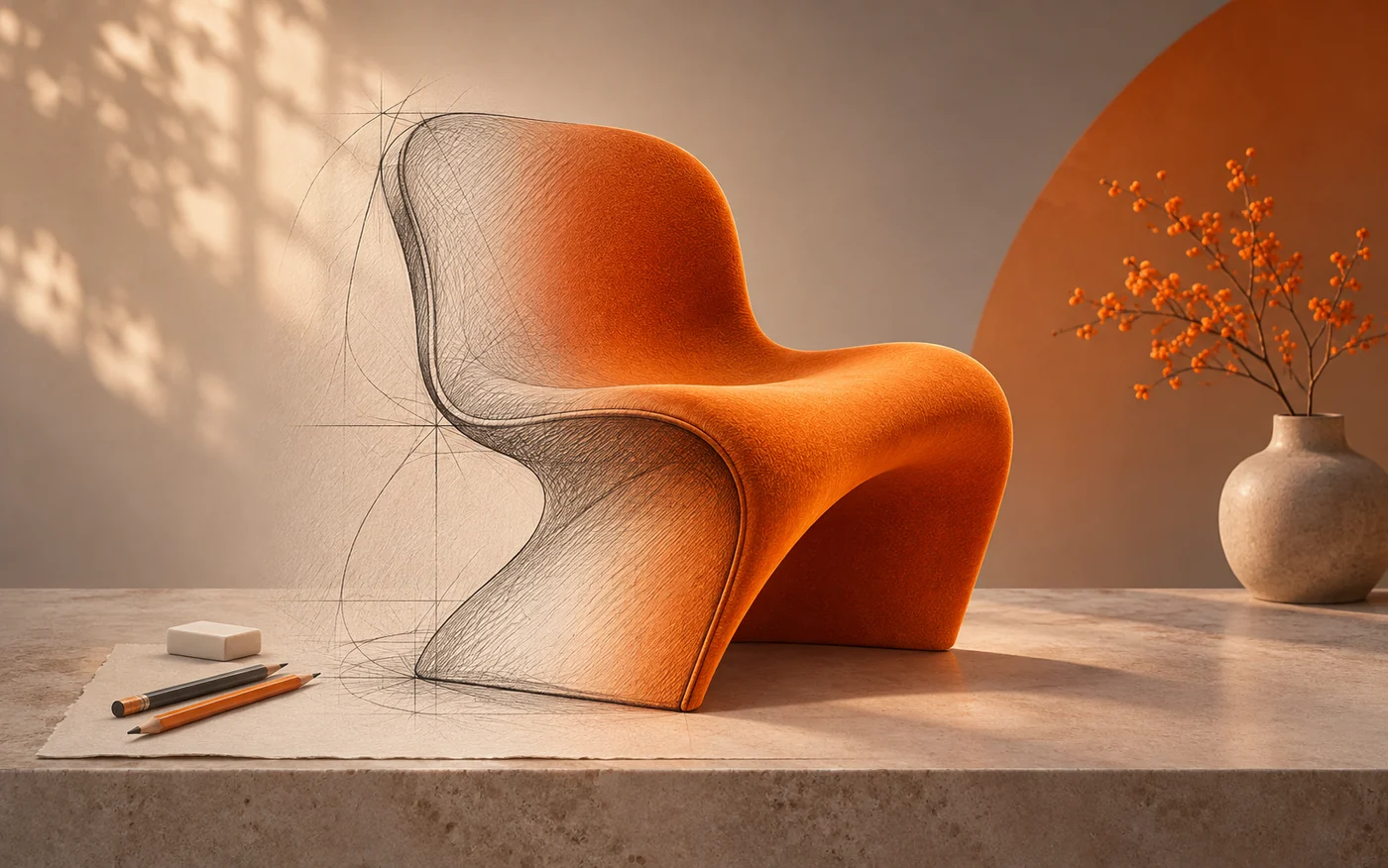
It's hard to explain in words that the house should sit in the left third of the frame, the road should run diagonally to the right and the moon should hang right above the roof. A sketch does it in a couple of lines. An image editing model takes the drawing as a reference and builds a finished picture on top of it, while the prompt explains what's drawn and what the result should look like.
Below we cover two scenarios, a sketch from scratch and marks drawn over an existing photo, and show how it works in Solistra.
Two scenarios
A sketch from scratch. You draw a plan of the frame: silhouettes, lines, patches of color. The model takes the composition and shapes from the drawing, and the materials, light and style from the prompt. The Gemini documentation describes this technique directly: upload a rough sketch and ask for it to be turned into a finished image that keeps the features of the drawing you need and adds new materials and details.
Marks over a photo. You open a finished shot and circle the spot that needs an edit, or draw an arrow and the outline of an object you want added. The model sees exactly where to make the change, and the prompt tells it what to do.
How the Draw button works in Solistra
On a wide screen, the prompt bar in the Image («Фото») section has a Draw («Рисовать») button. It opens a window with a canvas:
- A canvas with a dark background in a 4:3 aspect ratio.
- Six brush colors: white, orange, red, green, blue and black.
- A Brush («Кисть») slider that changes the line thickness.
- Clear («Очистить») wipes everything you've drawn.
- Add to prompt («Добавить в запрос») becomes active as soon as something appears on the canvas.
If the prompt bar already has an attachment, the first one opens on the canvas as a backdrop. That way you can draw marks right over a photo. The finished drawing is added to the prompt as an attachment called «Рисунок» (Drawing). Then you write the prompt and pick a model that accepts images.
On a phone, the prompt bar has no Draw button. You can draw the sketch on paper, take a picture of it and attach it with the «+» button. The model will read it the same way.
How to draw so the model gets it
- Big shapes matter more than details. A silhouette, the horizon line, where the main subject sits. The model will take tiny strokes for texture or noise.
- Contrast. A light line on a dark canvas reads better than a dark blue one.
- Color as a hint. In the prompt you can call a patch of blue at the bottom water and a green blob a tree crown. Without a label in the prompt, a color may stay just a color.
- Marks in a separate color. If you draw over a photo, pick a color that isn't in the frame, such as bright green, and say in the prompt that it's markup, not part of the image.
- Frame format. The canvas is horizontal. If you need a vertical result, choose the format in the prompt bar and keep in mind that the model will fit the composition to it.
The FLUX layout guide gives a useful tip that works for sketches too: describe where objects are in words on top of the drawing. Phrases like "in the lower left corner", "in the foreground" and "above the roof" help the model read the sketch correctly.
How to write a prompt for a sketch
A good prompt for a drawing answers four questions:
- What's drawn. "The sketch shows a room: a window on the right, a sofa on the left, a lamp in the corner."
- What to take from the drawing. The composition, silhouettes, layout, horizon line.
- What the result should be. A photo, an illustration, a watercolor, the light, materials, time of day.
- What not to carry over. The canvas background color, line thickness, marks.
In its reference guide, Kling shows that you can pull the result closer to the picture or closer to the text. In Solistra you do this with words: "match the layout exactly" or "use the sketch only as a general idea for the composition".
Sample prompts
The sketch is a plan of a living room: a large window on the right, a sofa on the left, a floor lamp in the corner, a rug in the center. Turn it into a realistic photo of a cozy Scandinavian-style living room, light wood, a linen sofa, warm evening light from the floor lamp and blue dusk outside the window. Keep the furniture exactly where it is in the drawing
A landscape sketch: a line of mountains at the top, a road running diagonally from the lower left corner to the right, a lone tree by the road. Make a photo of autumn mountains at dawn with fog in the valley and a tree with yellow leaves. Repeat the composition and horizon line from the drawing
The drawing is a simple silhouette of a girl with an umbrella standing on a bridge. Turn it into a watercolor illustration for a children's book: a yellow raincoat, a red umbrella, wet bridge planks, soft blurred paint, textured paper. Keep the pose and position of the figure from the sketch
The bright green outline on the photo is markup, not part of the image. In the outlined spot on the wall, hang a round mirror in a thin brass frame. Don't change the wall, furniture or light around it, and remove the green line completely
A sketch of a frame: a person on the left at the edge of a roof, a big city on the right, the moon at the top. Make a cinematic night shot: a man in a long coat on a rooftop looking at the city lights, a full moon above the skyscrapers, cold blue light and warm windows. Keep the position of the figure, the city and the moon
The sketch is a draft of an icon: a circle with a cup inside and steam drawn as three wavy lines. Make a neat flat illustration in two colors, dark brown and cream, with clean lines of even thickness and plenty of empty space around it
Common mistakes
- A drawing that's too detailed. A hundred tiny strokes turn into noise. Draw in blobs and bold lines.
- A prompt that doesn't describe the drawing. The model may read a circle as the sun rather than a plate. Say what's drawn.
- Marks left in the result. Without the words "this is markup, remove the line", the colored outline can show up in the finished photo.
- A dark brush on a dark canvas. A black line on a dark gray background is barely visible to the model. Use light and bright colors.
- A model that doesn't take images. The drawing is attached as a file, so choose a model that works with images.
- Expecting an exact copy. A sketch sets the composition but doesn't pin down every line. If precision matters, repeat the layout in words.
How to try it in Solistra
Open Flux Kontext Max in the Image section, click Draw in the prompt bar, sketch your layout and click Add to prompt. Then paste a prompt based on one of the examples. The cost shows on the run button before you click it.
For working with reference images in general, see the guide on references.
Sources and licenses
- Gemini API — image generation and editing — Google — CC BY 4.0
- Prompt and image attribute guide — Vertex AI — Google — CC BY 4.0
- FLUX — prompting for layout — Black Forest Labs
- FLUX — editing with a single reference image — Black Forest Labs
- Kling — how to use a reference image — Kling AI
- Text
- Solistra text. Our own wording and prompt examples, quotes under 15 words
- Images
Other images — Solistra image
- Checked
- November 12, 2026