Contents
Kling O1 is an image model from Kling AI, a service run by Kuaishou. In the official guide it also goes by Omni Image 1.0. The core idea is one tool instead of several: in a single window you generate an image from text, edit an existing photo with a phrase, and assemble a new scene from several references.
The developer describes the approach as a multimodal visual language: you talk to the model with text and images at the same time, and it works out on its own what to take from each picture. Below we look at what the documentation actually backs up and how to write prompts so the model doesn't change more than you asked.
What the model can do
The Kling O1 guide highlights four strengths.
- Feature retention. The model pulls features from several references at once, up to 10 at a time, and holds on to an object's outline, key details and color. That's what you need for characters, comics and brand style.
- Targeted edits. Add, remove or change an object with text, while the source's style, light and texture stay intact.
- Style transfer. The model breaks down a reference's look (brushwork, color combinations, composition) and carries it over to another image.
- Free imagination. Complex ideas like "what will this person look like in ten years" or "redraw this anime character as a real person."
Scenarios from the guide that come up most often:
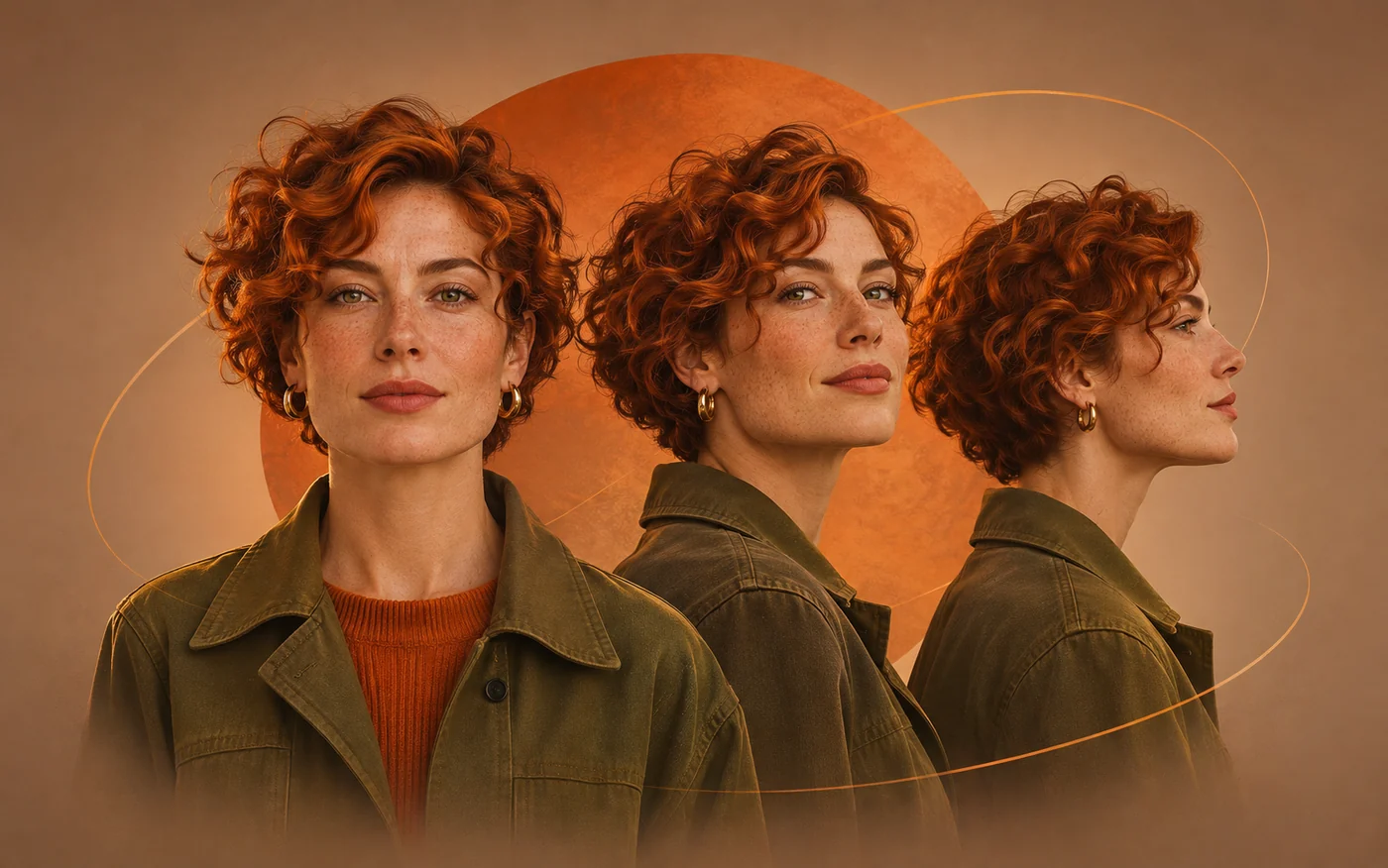
- Film and storyboards. The same character from the front, the side and the back, plus changes in camera height, shot size, facial expression, lighting and tone.
- Portraits. ID photos, themed photo shoots that keep the face, a group shot of two people from different photos.
- Avatar styles. Turning a photo into 3D, anime, watercolor, clay, pixel art and dozens of other looks.
- Products. An item from a reference placed in a new ad scene, and virtual try-on of clothes and accessories.
Versions and parameters
At the time of our check, Kling's image lineup includes several models. Here's how their guides describe them.
| Model | Guide date | What the developer highlights |
|---|---|---|
| Kling O1 (Omni Image 1.0) | December 30, 2025 | Editing and generation in one tool, up to 10 references, edits from a sketch and a selection |
| Kling Image 3.0 | February 4, 2026 | The same editing features and up to 10 references |
| Kling Image 3.0 Omni | February 6, 2026 | Cinematic look, a series mode starting at two frames, 2K and 4K output |
What to know about the parameters:
- The O1 guide doesn't disclose the list of resolutions, aspect ratios or the prompt length limit for this model. In Solistra, you pick the aspect ratio and quality in the run form.
- The series mode and 4K output are described in the Image 3.0 Omni guide. The documentation doesn't claim these features for O1.
- Kling's general image guide from November 2025 lists seven aspect ratios from 9:16 to 16:9 for the web service, Chinese and English input, and a 500-character limit. These figures apply to the general generation tool of that time, not to O1 specifically.
- Reference strength. The general guide describes a slider for how strongly a reference influences the result: the higher it is, the closer the output stays to the image, the lower, the closer it stays to the text. The O1 guide doesn't name a setting like that, so you set each reference's role in words.
What makes a good prompt
The O1 guide gives ready-made formulas. They're short, and that's exactly what makes them work.
Editing a single image
Keep everything else the same, replace [this] with [that] — Kling O1 guide
Name the edit target (object, background, angle, color) and the change (remove, add, make them smile, swap the material). For example: "Keep everything else the same, change the cup's material to clear glass."
Portrait from a face reference
The formula from the guide: keep the person's facial features, then hairstyle, clothing, action, background, lighting and atmosphere. This order helps the model not to skip any point.
Position and direction
Write directions plainly and unambiguously. The developer shows that a phrase like "swap the head and the feet" often goes wrong, while "turn the boy so that his head is at the bottom" works.
Multiple references
Refer to images by number and say what to take from which: "the woman from image 1," "the bag from image 2," "the background from image 3." For try-on, list the details that must not get lost: zippers, prints, texture, hardware. There's more on reference roles in the guide on references.
Generating from scratch
For a text-only image, the "5W1H" formula from Kling's general guide works well: who or what is in the frame, when, where, what they're doing and the scene details. The details are composition, angle, style, tone, lighting and texture. The Image 3.0 Omni guide adds an order for a cinematic frame: style, subject, location, lighting, composition, angle, focus, tone and overall mood.
The examples in the O1 guide are written in English, and the general guide names Chinese and English. The docs say nothing about prompts in Russian. If the model misreads your task, repeat the key words in English.
Prompt examples
Keep everything else the same. Replace the man's black coat with a dark green wool coat of the same cut, keep the buttons as they are
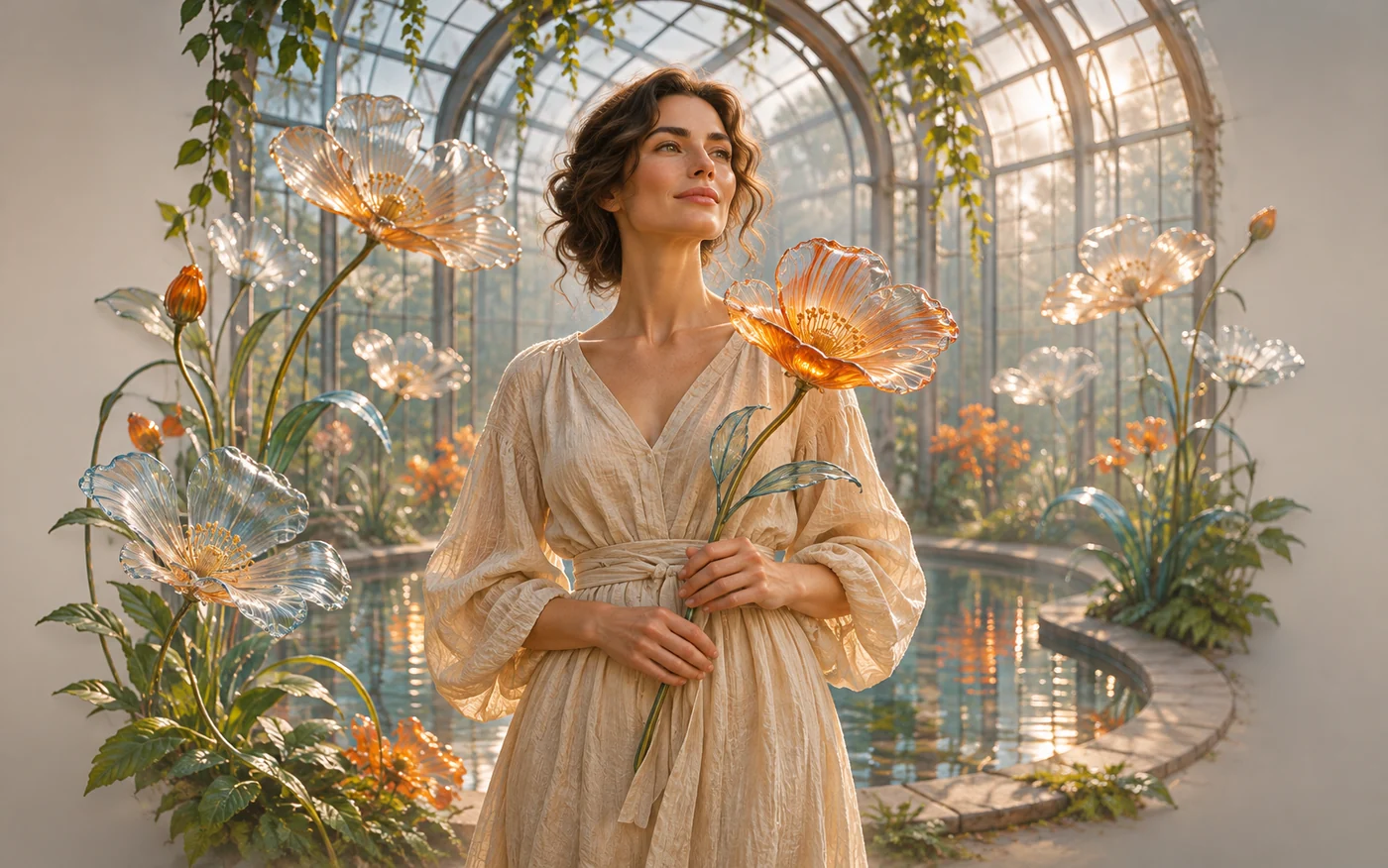
Keep the facial features of the person from image 1. Short haircut, a light linen shirt, the person sits on a wooden pier and looks into the distance. Summer evening, warm backlight, a light breeze in the hair, a calm mood, film photograph
Show this same character from the side in profile, camera at eye level. Clothing, hairstyle and lighting as in the source, neutral gray background
Put the jacket and boots from image 2 on the woman from image 1. Keep the woman's face, hairstyle and pose. Keep the jacket's color, zippers and patches, and the boots' laces and soles. Autumn street background, medium shot
The cream jar from image 1 in the center of the frame on a wet black stone, surrounded by water drops and eucalyptus leaves. Soft light from the upper left, deep shadows, a dark green palette, commercial product photography, square frame. Keep the lettering on the jar as it is in the reference
Redraw image 1 in the style of image 2: the same brushwork, the same palette and the same density of detail. Keep the composition and the people from image 1
Combine the people from images 1 and 2 into one high-angle selfie. The person on the left looks like image 1, the person on the right like image 2, keep their faces. Both are smiling and looking at the camera, a New Year's street with string lights in the background, fisheye lens
Common mistakes
- Not saying what to keep. Without the phrase "keep everything else the same," the model may also touch up the light, the background or the face. This is the main technique from the guide.
- Vague directions. The model interprets "flip it," "swap them" and "do the opposite" in its own way. Describe the end position: where the head is, where the person is looking, which side the object is on.
- References without roles. If you've uploaded several images and the text doesn't say what to take from which, faces and clothing get mixed up.
- Expecting 3.0 Omni features from O1. Series and 4K are described for a different model. With O1, rely on editing, references and stylization.
- Too many edits at once. It's easier to change one or two things per request: that way you can see which phrase worked, and it's simpler to step back. Main changes first, details after.
- A weak face reference. For portraits, use a shot where the face is clearly visible, without harsh shadows or glasses. There's more on preparing photos in the guide on a consistent character.
Try it in Solistra
Open Kling O1 in the Image («Фото») section, upload your source images and paste one of the prompts above. The form shows how many files the model accepts, and that's also where you pick the aspect ratio and quality. The cost shows on the run button before you start.
For edits with marks drawn on the photo and lettering in many languages, compare the result with Seedream, and for work with several references, take a look at FLUX.
Sources and licenses
- Kling O1 image user guide — Kling AI, Kuaishou
- Kling Image 3.0 user guide — Kling AI, Kuaishou
- Kling Image 3.0 Omni user guide — Kling AI, Kuaishou
- Kling AI · how image generation works — Kling AI, Kuaishou
- Kling AI · image prompt formula — Kling AI, Kuaishou
- Kling AI · references and reference strength — Kling AI, Kuaishou
- Kling AI · image sizes — Kling AI, Kuaishou
- Kling AI · text in images — Kling AI, Kuaishou
- Text
- Solistra text. Our own wording and prompt examples, quotes under 15 words
- Images
Other images — Solistra image
- Checked
- November 17, 2026