Contents
In Solistra you copy a movement from a video to your own character on the Motion control («Моушн контрол») tab of the Video section: put a photo of the character in the Character («Персонаж») slot, a clip with the movement in the Motion video («Видео движения») slot, and press Create («Создать»). The character from the photo will dance, wave or walk just like the person in the clip, while the face, clothes and location stay as they are in the photo. Two Kling models do the job, Motion Control and 3.0 Motion Control, and the second one lets you pick a ready-made character from Characters («Персонажи») so the face holds when the character turns.
How the Motion control tab works
At the top of the tab there's a button with the model name, and below it two slots, one above the other.
- Character. One photo that shows both the character and the setting. An empty slot reads «Один человек по пояс или в рост» (one person, waist-up or full length) and has two buttons: Upload photo («Загрузить фото») and Characters («Персонажи»).
- Motion video. One clip from 3 to 30 seconds. The slot hint says «Лучше один план без склеек» (best as a single shot with no cuts), and the button is Upload video («Загрузить видео»).
The model takes the face, clothes and surroundings from the photo and the movement and facial expressions from the clip. A prompt is optional: the video sets the movement, and text can add to the scene. The finished clip is no longer than the motion video, at 720p or 1080p. The Sound («Звук») toggle keeps the motion video's audio track; without it the result is silent.
Two models and Character orientation
| Model | What sets it apart | Character from Characters |
|---|---|---|
| Kling Motion Control | Motion video with one person who stays in the frame the whole time | No, photo only |
| Kling 3.0 Motion Control | The face holds through turns. If the clip has several people, the largest one is used | Yes, one character |
Both models ask for Character orientation («Положение персонажа»):
- As in the video («Как в видео»): the character's turns and the camera follow the clip. The motion video can be up to 30 seconds.
- As in the photo («Как на фото»): the character faces the way they do in the photo, and your prompt sets the camera. The motion video can be no longer than 10 seconds.
A character from Characters with a locked face
With Kling 3.0 Motion Control you can put a character from the Characters section into the Character slot instead of a plain photo. Press Characters and choose your own character or a ready-made Solistra one; a ready-made character is added to My characters («Мои персонажи») along the way.
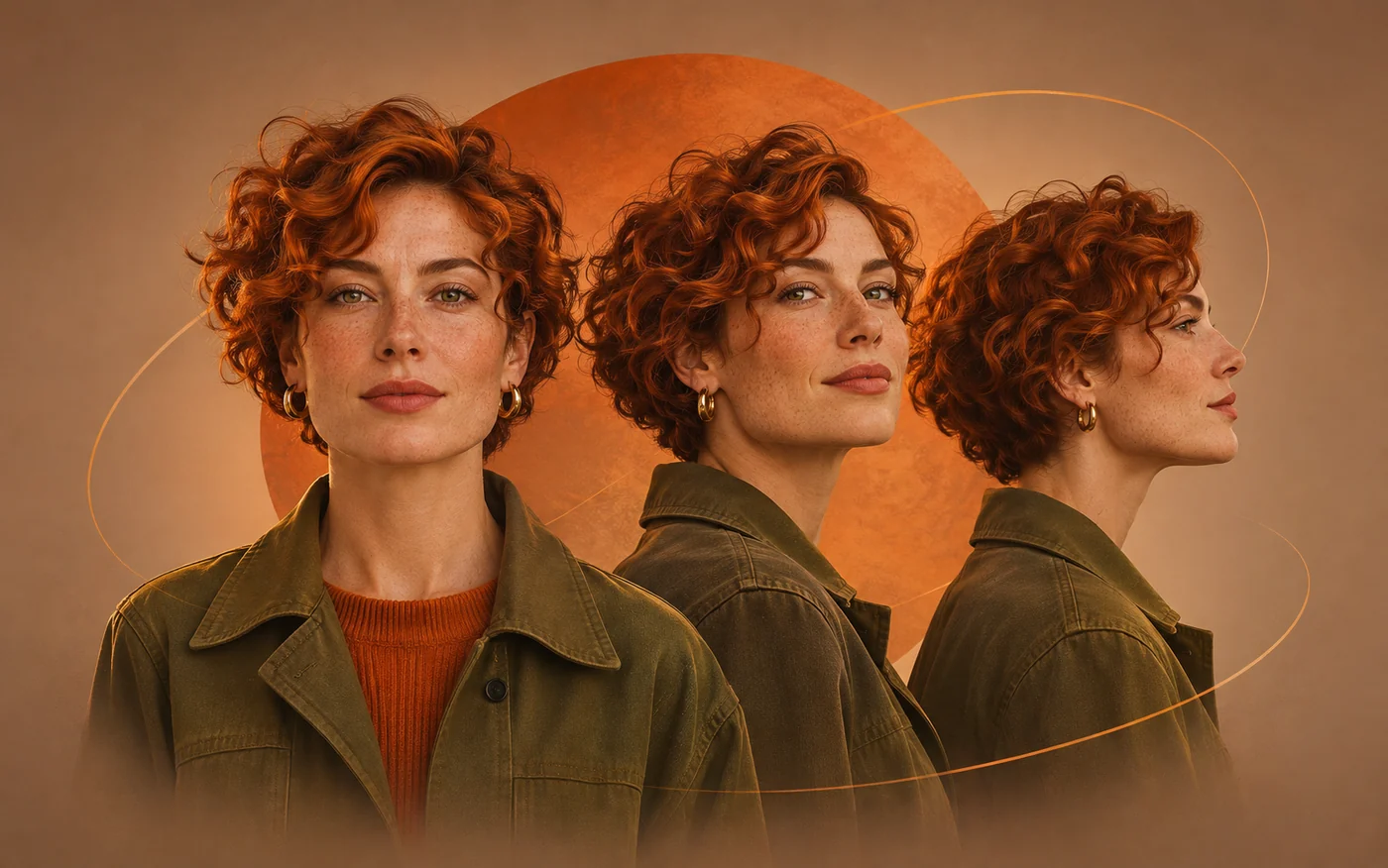
A Character angles («Ракурсы героя») strip appears under the photo: front, face and profile. Next to it is the Face locked («Лицо закреплено») mark. Kling holds the character's face from these angles even when they turn: according to Kling's documentation, such an element is built from a frontal photo of the character plus one to three more angles.
The conditions for locking are strict:
- only Kling 3.0 Motion Control; with the first version the strip is replaced by «Не у этой модели» (not with this model);
- only As in the video; with As in the photo the screen says «Только «Как в видео»» (As in the video only). Kling's documentation explains why: with a bound character, orientation always comes from the clip;
- one character per clip;
- enough angles; otherwise you'll see «Мало ракурсов» (too few angles), and the clip goes out with a plain photo of the character.
If the slot holds your own photo without a character, there's a Create character («Создать героя») link under it. It leads to Characters, where you can build a character from your own photos; the guide on a character from your own photos shows how.
How to shoot and choose the motion video
- One shot. No cuts and no camera movement.
- Smooth movement. Not too fast, or the clip may be cut short.
- The same framing. If the character is waist-up in the photo, the person in the clip should be waist-up too. The head is visible, the figure isn't tiny, and there's room around it to move.
- Length to match the mode. Up to 30 seconds with As in the video, up to 10 with As in the photo.
A prompt helps when you want to add to the scene or, with As in the photo, set the camera:
Snow is falling outside the window, a candle is burning on the table
The camera slowly pulls back to reveal the whole room, an evening city outside the window
Warm light from string lights overhead, a light breath of steam, blurred fair lights in the background
Common mistakes
- An edited clip. Cuts and camera movement in the motion video throw off the transfer. Trim it to one steady shot.
- Mismatched framing. A close-up portrait copes poorly with a full-length dance. Pick a photo with the same framing as the clip.
- A long video with As in the photo. This mode is limited to 10 seconds. For a longer clip, switch to As in the video.
- A character on the first model version. Only Kling 3.0 Motion Control can lock the face.
- Someone else's face. You can't upload photos of children, public figures or people without their written consent.
More on the Kling family, including when to choose Omni and when Motion Control, is in the guide on Kling for video. How to keep one character across a series of clips is covered in the guides on one character in different shots and characters in AI video.
Frequently asked questions
How is Motion control different from a regular image-to-video clip?
In a regular generation the model invents the movement from your description. Here the movement comes from a real clip, so the dance or gesture is repeated precisely.
Do I need to write a prompt?
No. The video sets the movement. A prompt adds background, light and details, and with As in the photo it also sets the camera movement.
Will the sound from the motion video be kept?
Yes, if Sound is on. Without it, the clip comes out silent.
How do I keep the face from changing when the character turns?
Choose Kling 3.0 Motion Control, set Character orientation to As in the video and put a character with angles from Characters into the slot. The Face locked mark confirms the binding is on.
Try it in Solistra
Sources and licenses
- Motion Control — API reference — Kuaishou, Kling AI
- Motion Control — user guide — Kuaishou, Kling AI
- Kling 4.0 elements — API reference — Kuaishou, Kling AI
- Motion transfer in Solistra — Solistra
- Text
- Solistra text. Our own wording and prompt examples, quotes under 15 words
- Images
Other images — Solistra image
- Checked
- November 21, 2026