Contents
A finished 3D model is rarely shown as a file. GLB, the binary format of the Khronos Group's glTF standard, suits apps and game engines, not a social feed. Clients, followers and shoppers need a picture or a short video that plays on any phone. The usual route is to load the model into a 3D app, set up a camera on a circle and wait for the render. In the 3D section the Shoot («Снять») button does that: a snapshot, a clip with a turntable or another camera move, and a set of angles are drawn right in the browser and cost no credits. Here's how to set up the view, what to pick in each tab and where to send the result.
Set up the view before you shoot
A shoot starts from what the viewer shows right now: the light, the background, the models nearby and the camera position. So set up the space first, then press the button.
- Camera position. Rotate and zoom with the mouse, or with one and two fingers on a phone. For precise placement there's flight on the W A S D and Q E keys. Clip moves start from here, and the model always stays fully in frame.
- Light («Свет»). Pick lighting that shows the form: a highlight on metal, folds in fabric, surface relief. Flat front light flattens the volume.
- Background («Фон»). Five backgrounds to choose from. Something calm and light for products, darker is fine for a game hero.
- Add («Добавить»). Place your other models nearby: a whole product line, or a hero with his weapon. You can move them, rotate them with the ring and resize them.
- Save view («Сохранить вид»). A good layout and angle are saved, so you can come back to them for the next shoot.
The viewer shows a heavy mesh as a lighter copy, while actions on the file use the main model. If the color on screen looks softer than you expected, check the Color detail setting in the guide on textures and model color.
The three Shoot tabs
| Tab | What you get | Where it goes |
|---|---|---|
| Snapshot («Снимок») | One 16:9, 9:16, 1:1 or 4:5 frame, a preset angle, background as shown or transparent | To Library, to Image, Download |
| Clip («Ролик») | A 4, 6 or 10 second video, ten camera moves, 30 frames per second | To Video editor, to Library, Download |
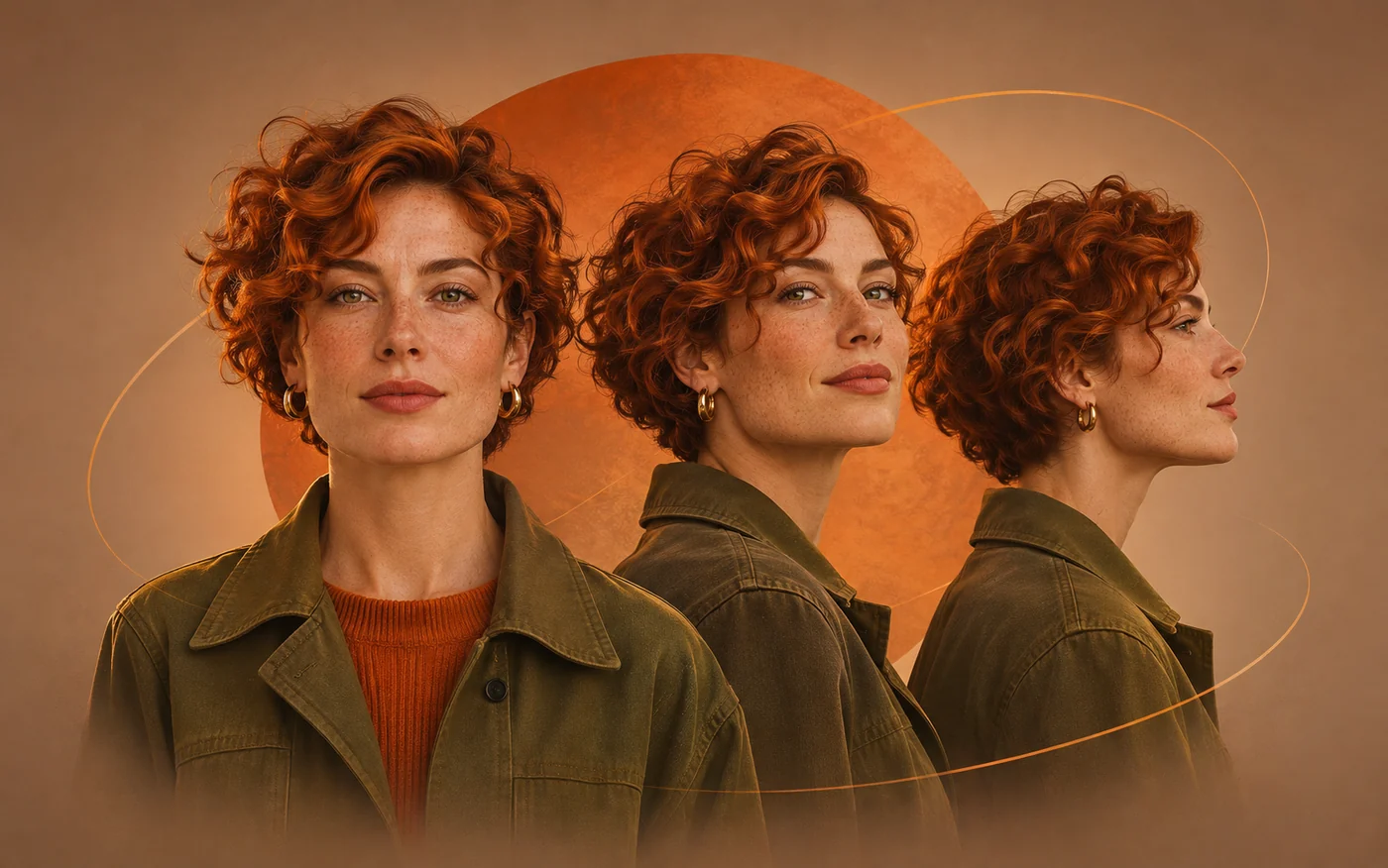
| Angles («Ракурсы») | 4 or 8 square frames around the model | To Characters, to Library |
The Frame («Кадр») field is shared by snapshots and clips: 16:9, 9:16, 1:1 or 4:5. It defaults to 16:9 on a computer and 9:16 on a phone, and your choice is remembered on the device.
Snapshot: a frame for a cover or a product card
A snapshot uses the proportion set in Frame. The long side is 4096 px on a computer and 2048 px on a phone: 4096 by 2304 in 16:9, about 3277 by 4096 in 4:5. For a big frame, shoot from a computer.
The Angle («Ракурс») field places the camera for you: As on screen («Как на экране»), Front («Спереди»), Three quarters («Три четверти»), Side («Сбоку»), Back («Сзади») or Top («Сверху»). Preset angles help with a series: every item in a product line is shot from the same point, so the frames match.
Choose the background before the shot: As on screen («Как на экране») or Transparent («Прозрачный»). Transparent is handy when the model will sit on another background later: a banner, a slide, a product card layout. The order is Take shot («Снять кадр»), review it, Retake («Снять заново») if needed, then To Library («В Библиотеку»), To Image («В Фото») or Download («Скачать»).
To Image opens the next step: the snapshot becomes a reference, and an image model places the object into a scene. That's how one model turns into shots in a room, outdoors or in someone's hands, with the object's shape taken from 3D rather than invented again.
The same desk lamp from the image, same shape, proportions, colors and materials. It stands on an oak writing desk by a window, next to an open notebook and a ceramic mug. Soft daylight from the window on the left, a light shadow from the lamp on the desk. Camera at desk height, shallow depth of field, the room behind slightly blurred.
Clip: a turntable and other camera moves
The Clip tab records a short video of 4, 6 or 10 seconds at 30 frames per second. The short side is 1080 px on a computer and 720 px on a phone. Sizes by Frame:
| Frame | Computer | Phone | Good for |
|---|---|---|---|
| 16:9 | 1920 by 1080 | 1280 by 720 | Websites, presentations, YouTube |
| 9:16 | 1080 by 1920 | 720 by 1280 | Shorts, VK Clips, stories |
| 1:1 | 1080 by 1080 | 720 by 720 | Square feeds, catalog previews |
| 4:5 | 1080 by 1350 | 720 by 900 | Social feeds that crop vertical video |
Every platform has its own video requirements, so check its rules before you publish.
The Move («Движение») field has ten tiles. Each move starts from the camera position in the viewer, and the model stays fully in frame the whole time.
| Move | What the camera does | When to use it |
|---|---|---|
| Orbit («Облёт») | A full circle around the model at even speed | Products, figurines, anything seen from all sides |
| Half turn («Пол-оборота») | Half a circle with a soft start and stop | Face and side when the back is weaker |
| Push in («Наезд») | Moves closer to the model | Focus on a detail, the end of a clip |
| Pull out («Отъезд») | Moves away from the model | Reveal a scene of several models |
| Rise («Подъём») | Climbs and looks down more and more | Show the top, a lid, a hairstyle |
| Spiral («Спираль») | A full circle while rising | A striking intro |
| Top down («Сверху вниз») | Descends from a high view | An object's entrance, the start of a clip |
| Pendulum («Маятник») | Swings left and right around the model | A calm backdrop for titles |
| Low («Снизу») | A circle from foot level, looking up | Makes a hero look bigger and bolder |
| Still («Без движения») | Stays as on screen | An animated hero: he moves, not the camera |
The orbit is still the main pick for showing a whole model, while the other moves add variety when you need several clips from one model. Still is for a hero with a motion from Bring to life («Оживить»): turn on the motion with the switch under the viewer, pick Still and press Record clip («Снять ролик»), and the camera films him walking, running or jumping. Getting a skeleton and motions is covered in the guide on 3D character animation.
The browser encodes the clip itself. If it can't, the button is disabled with a hint next to it: open the page in another browser. Send the finished video To Video editor («В Монтаж») to combine it with other clips in the Video editor, or save it To Library.
Before a clip, check the model from every side in the viewer. Orbit, Spiral and Low will honestly show the back as well. If the back was built from a single front photo and looks weaker, rebuild the model from several sides, as described in the guide on 3D models from photos.
Angles: references for Image and Characters
The Angles tab captures 4 or 8 square frames around the model: 1024 px on a computer, 768 px on a phone. It's a ready character or object sheet with one light and one background.
Why bother? Image models hold a hero's look better when they see him from several sides. To Characters («В Персонажи») sends the angles to Characters as regular images of the hero, and from there you can mention him in Image prompts. The 3D file itself doesn't go to Characters, only the frames. How references work is explained in the guide on keeping one character across shots.
The same hero from the images: same look, proportions, clothing colors and materials. A delivery robot stands on a wet evening street by the entrance to a small café, holding a paper bag. Warm light from the shop window on the right, streetlight reflections on the asphalt. Medium shot, camera at the hero's chest height.
Eight angles beat four when the hero has a complex back or asymmetric details: a bag on one side, a band on one arm. Four is plenty for simple objects.
Common mistakes
- Shooting without setting the light. The model looks flat. Pick a Light preset that shows volume and save the view.
- Forgetting the transparent background. A snapshot on gray then has to be cut out. Choose Transparent before the shot if the model is going into a layout.
- A full circle around a weak model. The camera will show a lumpy back. Check every side, or use Half turn.
- A 16:9 frame for a vertical feed. Half the screen goes to bars. Match Frame to the platform: 9:16 for Shorts and VK Clips, 4:5 or 1:1 for feeds.
- A phone snapshot for a large print. The long side tops out at 2048 px there. Shoot big frames from a computer.
Further reading
- 3D product models for listings — snapshots, angles and a clip for a marketplace.
- 3D character animation — skeleton and ready-made motions.
- Products in AI video — orbiting a product with a video model and its traps.
- One character across shots — references and a character sheet.
- AI 3D model generator — the whole section at a glance.
Frequently asked questions
How do I make a turntable video of a 3D model
Open the model in the 3D section, press Shoot and pick the Clip tab. Leave Move on Orbit, choose a Frame and a length of 4, 6 or 10 seconds, press Record clip, then download the video or send it to the Video editor.
How do I render a 3D model to an image without 3D software
The Snapshot tab captures a frame right in the browser, 4096 px on the long side on a computer. Frame sets the proportion, Angle sets the viewpoint, and the background can stay as on screen or go transparent.
How much does it cost to shoot a video from a 3D model
Nothing. Shoot draws frames and clips in the browser and doesn't spend credits.
Can I record a character's animation as a video
Yes. If the model has a motion from Bring to life, turn it on under the viewer, pick the Still move in the Clip tab and press Record clip.
Which frame should I pick for Shorts and VK Clips
9:16: on a computer the clip comes out at 1080 by 1920. For feeds with a vertical frame 4:5 works, for a website 16:9.
Why is the record button disabled
The browser encodes the clip itself. If your browser can't do that, the button is disabled with a hint. Open the page in another browser.
Try it in Solistra
Sources and licenses
- The 3D section — models from text and photos — Solistra
- glTF — a specification for transmitting 3D models and scenes — Khronos Group
- Text
- Solistra text. Our own wording and prompt examples, quotes under 15 words
- Images
Other images — Solistra image
- Checked
- November 18, 2026