Contents
A generated clip almost always comes out the wrong length: the action cuts off at the most important moment, the ending runs out before the viewer has read the title, or a gesture has to be sped up to hit the music. This guide is about time inside a shot and between shots. We'll cover how to size a clip for a single action, how to set the order of phases, how to extend a good shot from its last clean frame, how to hold a calm ending or a freeze frame without it feeling like the video froze, and how to fit shots to a musical phrase.
Three phases of every shot
Every simple shot has a setup, a movement and a stop. Before you write the prompt, decide which of them the viewer needs. If the whole clip is eaten up by an opening push in or a hand taking its time to get there, the event has to be cut short and you're left without a complete piece for the edit.
Break the action into three phases and write down what should be visible at the end. In the source, put the object near the start of its path, and in the prompt describe the end point and ask for a short hold. Then you can cut a complete piece out of the clip without anything being chopped off.
A terracotta ball starts near the top of the cream ramp, rolls down in one smooth movement, then settles in the shallow stop at the bottom. Hold on the finished position.
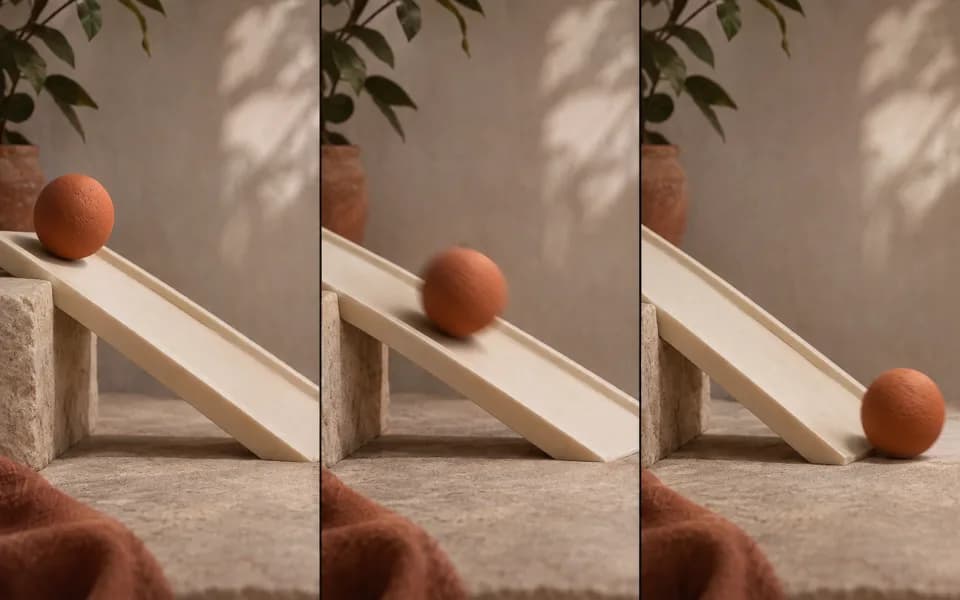
If the ball doesn't have time to stop, shorten its path or move the setup into the previous shot. If the movement takes too little time, increase the distance and specify a smooth acceleration. Opening a box follows the same logic. The viewer needs time to notice what's inside, so start with a hand already gripping the lid: the main action begins sooner, and more time is left for the reveal.
A hand begins with a grip on the lid, lifts it in one continuous motion, then holds it open. Show the contents clearly before the end. Keep the camera steady.
With some models you pick the duration at launch: Runway's help pages for Gen-4 and Gen-4.5, for example, describe it as a separate parameter. Compare different durations on the same source: a short take with the lid lifted a little and a longer one with it fully open. In both, mark the moment the contents become visible. If they only appear on the last frame, shorten the lid's travel or move the ending into a separate insert and hold it for as long as the viewer needs.
The order of events inside a clip
It's easier for a model to show a clear order of events than to hit every fraction of a second precisely. So in the prompt, name the transitions with first, then and finally, and fine-tune the exact rhythm in the edit. Pick one location and no more than three connected phases: the starting state, the event and a pause at the end.
First, the metronome arm starts at the left. It swings to the right and back twice. Finally, a hand gently catches the arm and holds it still. Fixed camera.
First the desk lamp turns on. Then the paper sailboat glides a short distance across the tabletop. Finally it comes to rest in the pool of light. Static framing.
If the phases swap places, say the boat starts moving before the light comes on, reduce the number of events or split the scene into two clips. In the second version, the lamp switching on is shot separately, and the boat is animated under steady light. Compare which version gives you more usable cut points. If there isn't enough of a pause at the end, shorten the boat's path and add an explicit hold.
Some models accept timestamps inside the prompt. Use them as a guide, but still check the final rhythm on the timeline. Don't count on frame accuracy from a single overall prompt: if you need to hit specific sound accents, leave some slack around each phase and fit individual frames to the markers in the edit.
Extending a good shot
Sometimes a good tracking shot ends before the viewer notices the door, or an artifact appears in the last frames. That's when you extend the shot. Google's Veo 3.1 documentation and xAI's documentation both describe extension as a separate mode, and according to xAI it's supported by the base Grok Imagine model. If the model you've chosen can do this, use that mode. If not, a separate still frame becomes the starting point for a new clip.
Decide in advance what must carry over: the direction, the speed, the lighting and the object's position. Find the last sharp frame before the artifact or the cutoff. Note the direction of motion and a stable landmark, such as a fence post that passes the edge of the frame shortly before the end. Leave a little overlap so you can choose the cut point by that landmark rather than at random.
The same wine-colored funicular continues uphill at the same steady speed. The view follows the same track and angle. Brick walls and overcast light stay consistent.
Continue the same short lateral glide along the railing at a constant speed. Maintain the horizon and fixed spacing of the posts. The door slowly comes into view and the camera holds.
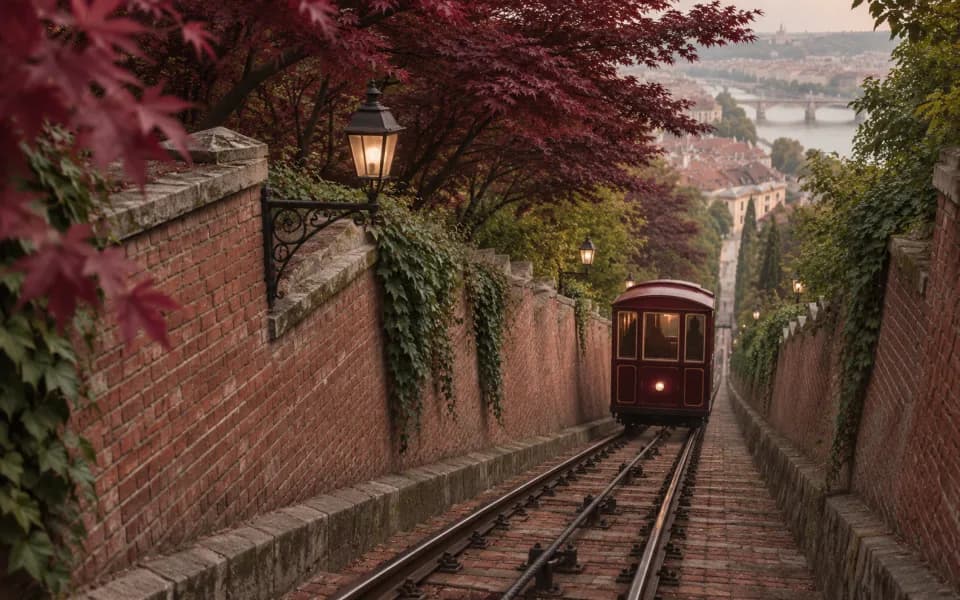
Compare a continuation made with the model's extension mode against a new clip from the last clean frame, with the same light and motion. Line both up by the post and a distant landmark. If the new clip starts off standing still, pick a starting frame where the direction is already visible from the composition, or start a little earlier. If the scale changes or the horizon jumps at the seam, step back to a more stable point in the first clip. Note where the last visible post is before and after the seam: if it jumps, choose the cut point by its edge. When the join just won't hold, cut away to a detail of the door and come back to the wide shot. That kind of cut is justified by the story as long as the direction of the move is already clear.
Gaining time: comparing the options
There are several ways to get the time you need, and each has its own risk.
| Method | When it fits | What it risks |
|---|---|---|
| Holding the last frame | the frame is almost static, shadows and fabric don't move | a noticeable freeze if there was motion in the frame |
| Extending with the model's mode | the model supports continuation, the motion is even | a jump in scale or light at the seam |
| A new clip from the last clean frame | there's no extension mode | a pause at the start, a second object in the frame |
| A separate calm shot | the background moves noticeably, a title is needed | different product size and light at the cut |
| A cutaway to a detail | the join won't hold, but the direction is clear | an extra shot if it carries no information |
A calm ending for a title
The closing title needs time to be read. If the product has already come to rest, you can extend that moment, but first check whether fabric, a shadow or the background is moving in the last frame. That decides the method.
Put a draft title on the timeline and work out how long it actually takes to read, testing it with the longest line. Pick a stable point after the action. If the frame is almost static, a hold is enough. If the background moves noticeably, prepare a separate calm shot with similar light and free space for the text.
The ivory bag rests motionless at the end of the runway. The frame holds on the complete product silhouette. A soft reflected highlight drifts subtly along the edge.
Hold a clean stable view of the product at its final position. Only a very soft background shadow moves slightly. Preserve the product shape and leave quiet room for an overlay.
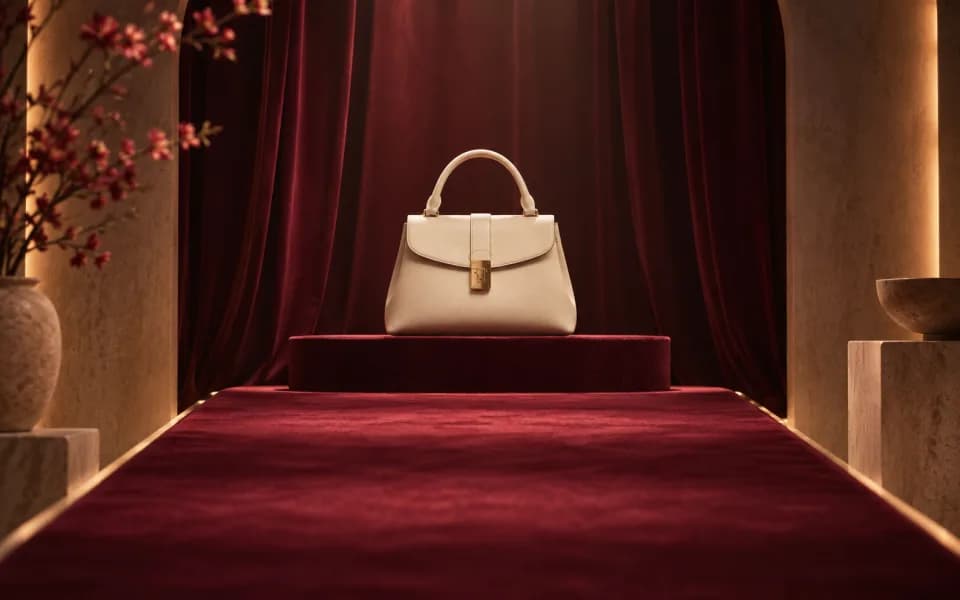
Compare a short hold of the last frame with a separate continuation where a shadow moves very slightly. In both versions, check the start of the pause: how noticeable the freeze is depends on how fast the shadow was moving before the cut. If the continuation changes the product's shape, stop on an earlier clean frame. If the title still doesn't fit, it's sometimes easier to split it into two lines shown one after the other than to add motion after the approved ending. Another way out: cut to a static card at a natural edit point, keeping the product size and light direction, with the sound on a separate track.
A freeze frame as a deliberate accent
A freeze frame works when it looks like a conscious choice. If it's meant to pass as live footage, pick a moment where the camera and the object have already slowed down. A frame from the middle of a fast gesture keeps the motion blur and looks like a playback glitch.
Step through the clip frame by frame and pick a sharp moment with no blur on the main object and no distorted fabric edge. Hold the frame for as long as the title or the hit accent needs. A freeze frame is made in the Video editor («Монтаж»), and the rules for choosing the frame don't depend on the tool.
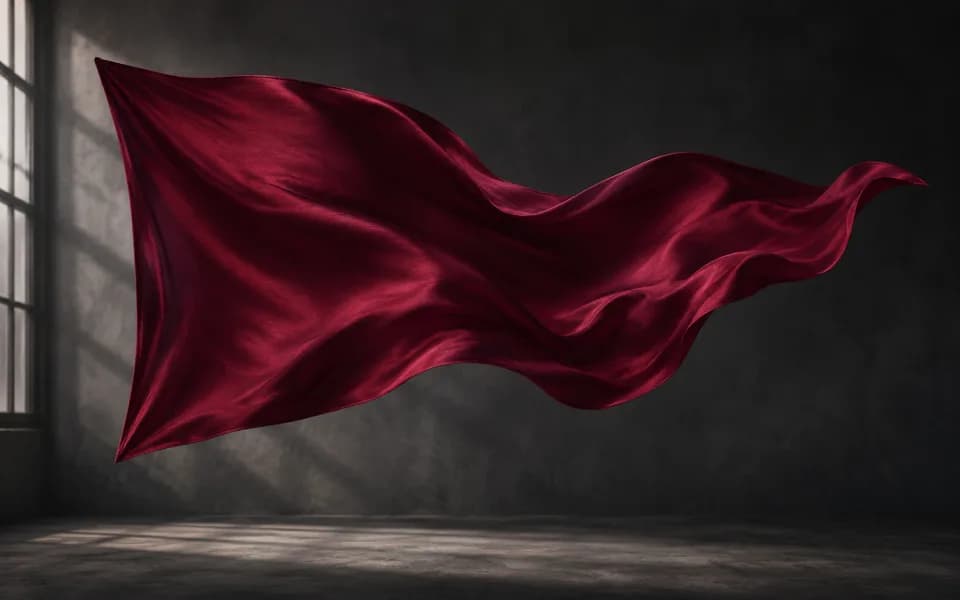
The burgundy silk slows and settles in a readable shape. A stationary camera holds the folds in crisp side light. The fabric remains clearly separated from the backdrop.
Close-up of a key being set on a wooden table. The key settles into a crisp stationary position, then the hand slowly leaves frame. Keep the camera locked.
Compare a stop just after the key touches the table with one at a later, calmer phase, when the hand no longer covers the object. If you need a title, try it on together with the duration. Listen separately to the sound around the stop: a short pause feels natural when the background track keeps going, and too abrupt when the sound is chopped. If you need the stop right in the middle of a movement, signal it with the edit or the sound so the pause reads as a device. And check how the motion resumes after the hold: the next frame should continue the scene without a second touch.
Cutting to music
First find the musical phrase that matches how the scene develops, and only then choose the shots. Cutting on every beat makes sense only when the rhythm of the action itself matches it. More often, cuts on meaningful accents work better: a light switching on, a door opening.
Put markers on the noticeable accents in the track. Generate each gesture slightly longer than the edit segment you need, with short calm phases at both ends. Then line up the phase of the action with the chosen accent and trim the rest.
The paper lantern swings once and settles. Keep the movement clear and leave a brief steady hold at both ends for the edit. Locked medium shot.
The door swings open smoothly and a light comes on inside. Leave short calm phases before and after the action so the edit can land on a musical accent.
If you have to speed up or stretch a gesture a lot to hit a beat, choose a different take or move the cut to a neighboring accent. Part of a shot can run for a few beats, with a short insert given its own beat. If the video needs a different length, trim the music along a musical phrase. The Video editor has a music fit to the video length in its sound assistant for this. When comparing versions, match their loudness: the louder take seems more expressive even if its rhythm is worse. If the music drowns out the speech, check the levels, and for how to build the sound bed between shots, see the guide on sound in the edit.
How to check the result
- Compare normal playback with frame-by-frame viewing. At speed you judge the rhythm, while individual frames reveal the exact cause of a jump. For two versions, use the same section and the same frame rate.
- Check that the main event finishes before the trim point and that there's editing headroom after the stop.
- At an extension seam, compare the landmark's speed, the horizon height and the light on both sides.
- Read the closing title on a phone. The product's shape and color should stay the same to the very end.
- Watch the music cut once with the music and once without it. The action should read without sound, and with the music the accents should match the movement or a change of shot.
- Check the framing, duration and sound together. When switching to a different aspect ratio, an important object can slip past the edge in exactly the phase where the cut sits, so keep a separate master for each platform and check every crop on the key frames.
Write down the exact cut point and the range used from each clip. When a shot needs to be extended or replaced, the good position is easy to restore from the timecode and a visible landmark.
Common mistakes
- The setup ate the whole clip. The hand takes ages to reach the lid, and the reveal gets cut off. Start the source closer to the point of motion.
- Too many events in one prompt. The phases swap places. Keep it to three phases or split the scene into clips.
- Expecting frame accuracy. Hitting an accent is better done in the edit than demanded of the model.
- Extending from a bad frame. If the starting frame is blurred or already contains an artifact, the seam will show. Step back to the last clean frame.
- Freezing a living background. Holding a frame with a moving shadow or fabric looks like the video hung. Use a separate calm shot.
- A freeze frame from the middle of a fast gesture. Blur on the object makes the stop look like a defect. Choose a sharp frame after the motion slows.
- A cut on every beat. If the action has a different rhythm, the gestures look sped up. Cut on meaningful accents.
- Chopped sound during a pause. Keep the background track running under the freeze frame and the ending.
If you need a shot that's not longer but endless, that's a job for a loop, covered in the guide on looping videos. Which shots to put side by side so the video holds its story is covered in the guide on storyboarding AI video, and matching direction and eyeline is covered in the guide on editing continuity.
Frequently asked questions
How do I extend an AI-generated video?
If the model supports extension, use that mode and start from the last clean frame. If not, save that frame as a still and generate a new clip from it with the same direction, speed and light. Leave an overlap and join the clips on a stable landmark in the frame.
How long should a clip be for one action?
Exactly long enough to fit the setup, the movement itself and a short hold at the end. If the action doesn't have time to finish, shorten the setup in the source or the object's path. You should be able to cut a complete piece out of the clip without the event being chopped off.
How do I set a sequence of actions in a video prompt?
Describe no more than three phases and link them with first, then and finally: the starting state, the event and a pause at the end. If the phases get mixed up, split the scene into two clips. Fine-tune the exact rhythm in the edit.
How do I make a freeze frame that doesn't look like the video froze?
Choose a sharp frame where the camera and the object have already slowed down, with no blur on the main object. Hold it only for the duration of the title or the accent, and don't cut off the background sound. If the background is moving in the frame, it's better to generate a separate calm shot.
How do I fit generated shots to music?
Put markers on the accents in the track, generate gestures a little longer than needed with pauses at both ends, and line up the action phase with the accent. Cut on meaningful accents, not on every beat. If the video is a different length, trim the music along a phrase.
Try it in Solistra
Sources and licenses
- Creating with Gen-4.5 — Runway
- Creating with Gen-4 Video — Runway
- Generate videos with Veo 3.1 in Gemini API — Google AI
- Extend videos — Google Cloud
- Video Extension | SpaceXSI Docs — xAI
- wan3.0 Video Generation Prompt Guide — Alibaba Cloud
- What is continuity editing in film — Adobe
- Freeze video frames in Premiere — Adobe
- Freeze clips in Premiere mobile — Adobe
- Remix audio in Premiere using AI — Adobe
- Remix tool considerations in Premiere — Adobe
- Text
- Solistra text. Our own wording and prompt examples, quotes under 15 words
- Images
Other images — Solistra image
- Checked
- November 12, 2026